
















How to Find Hidden Apps on Your Child's Android Phone


If you want to know how to find hidden apps on Android, here’s the reassuring truth up front. Nothing installs completely invisibly on an Android phone. Every app your child installs leaves a trail — in Settings, in the Play Store, in usage stats. So learning how to find hidden apps on Android is really about knowing the few places to look.
Maybe the home screen looks normal. But you have a hunch something’s disguised or tucked away. That instinct is worth checking.
I’ve spent years helping US parents tell real risks from ordinary teenage privacy. This guide walks seven practical checks, step by step. It decodes the fake-”calculator” vault apps. And it shows how to stay aware over time — so you find it first, then talk about it.
This is a guide about safety and awareness, not covert surveillance. The goal is to understand what’s on your child’s phone — so you can have a calmer, better-informed conversation, not to spy.
Let’s start with what “hidden” actually means.
What does a “hidden app” on Android actually mean?

Before you go hunting, one thing helps. “Hidden” almost never means invisible malware slipped on by a stranger. Usually an app gets “hidden” in one of a few ordinary ways, and most of them are built right into the phone or the launcher.
The key fact is simple. Android lists almost every installed package somewhere you can reach, so nearly all of them are detectable. The one modern exception is a locked Private Space (Android 15), which we cover below.
The single most empowering fact for a worried parent: almost nothing installs truly invisibly on Android. Nearly every app appears in Settings → Apps → See all apps, even when its icon is hidden — the one modern exception is a locked Private Space (Android 15), covered below.
Here are the real ways an app ends up “hidden” — each with its giveaway:
-
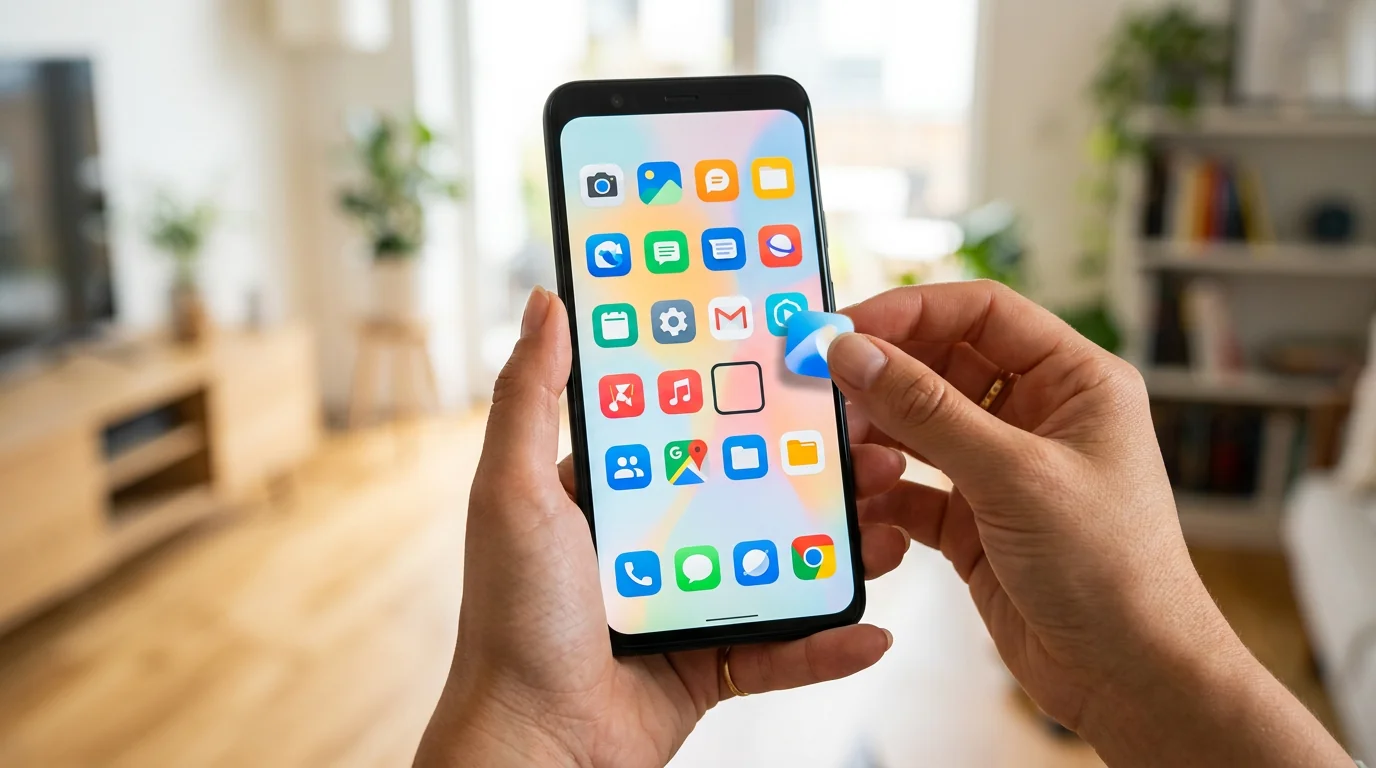 Icon hidden from the app drawer Built into the launcher
Some launchers — Nova, Samsung One UI, Xiaomi — let you pull an icon out of the drawer without uninstalling it. The giveaway: a launcher setting literally called 'Hide apps,' with a list inside.
-
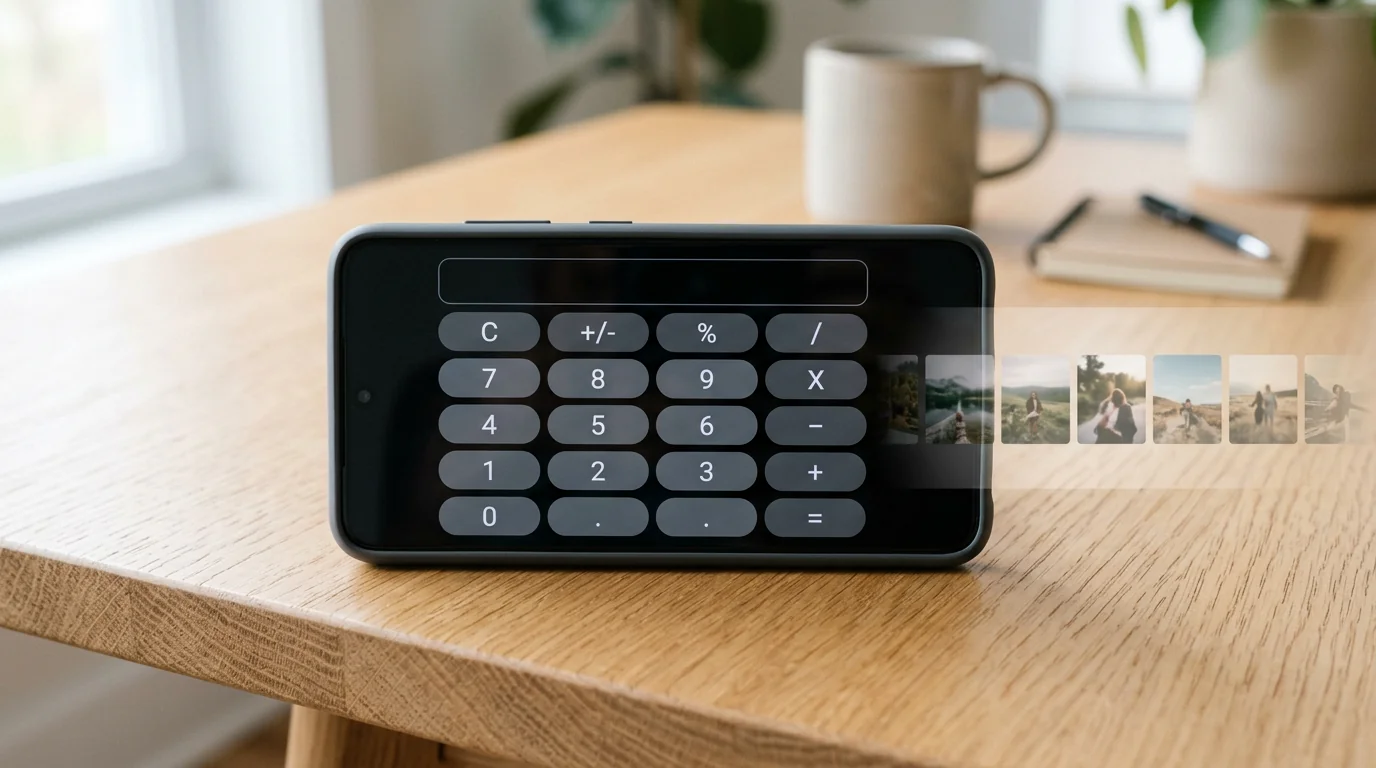 Disguised 'vault' or decoy app Hides in plain sight
A fake Calculator, Clock, or Notes app that opens a PIN-locked photo or file store. The giveaway: a second calculator, or a plain utility that asks for a password.
-
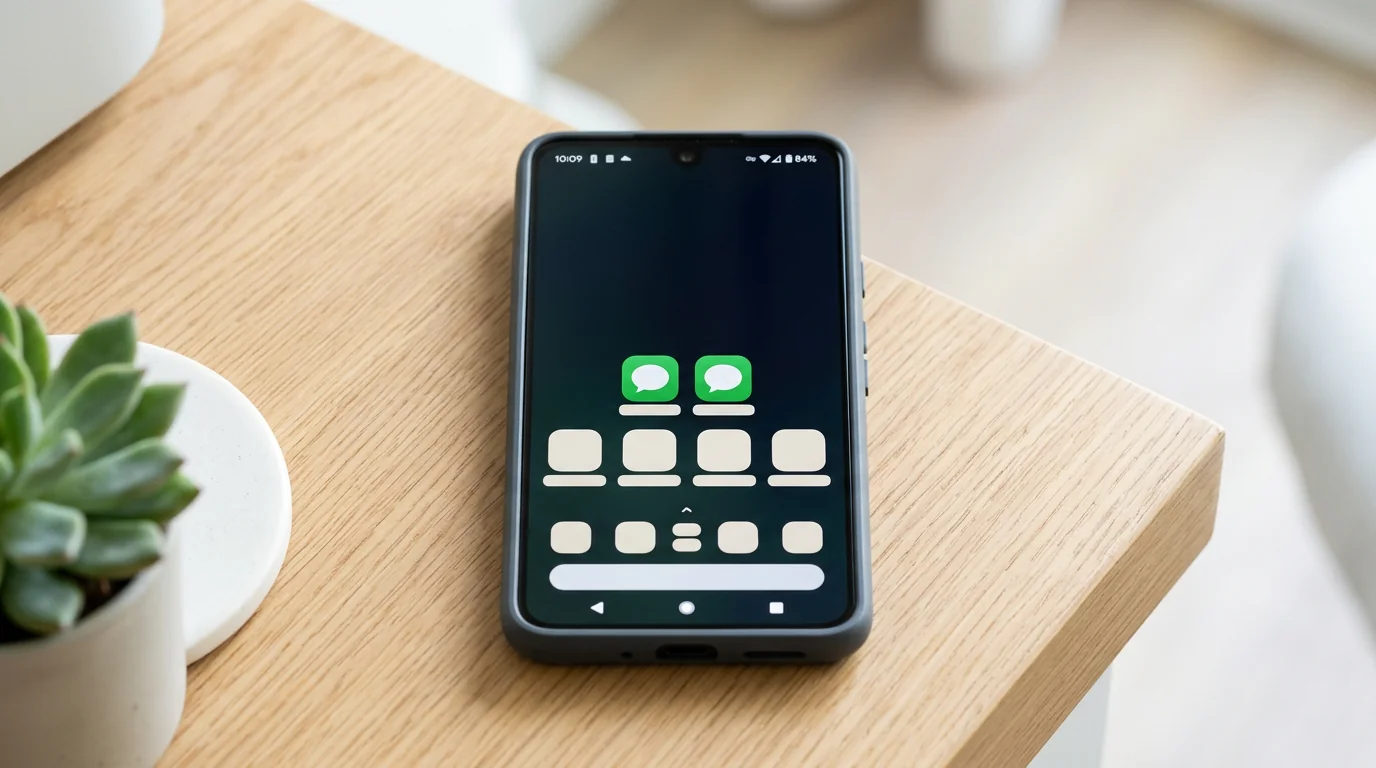 Cloned or dual app A second, private copy
Samsung 'Dual Messenger' or Xiaomi 'Dual apps' run a second copy of WhatsApp or Instagram. The giveaway: two of the same messaging app, one tucked away.
-
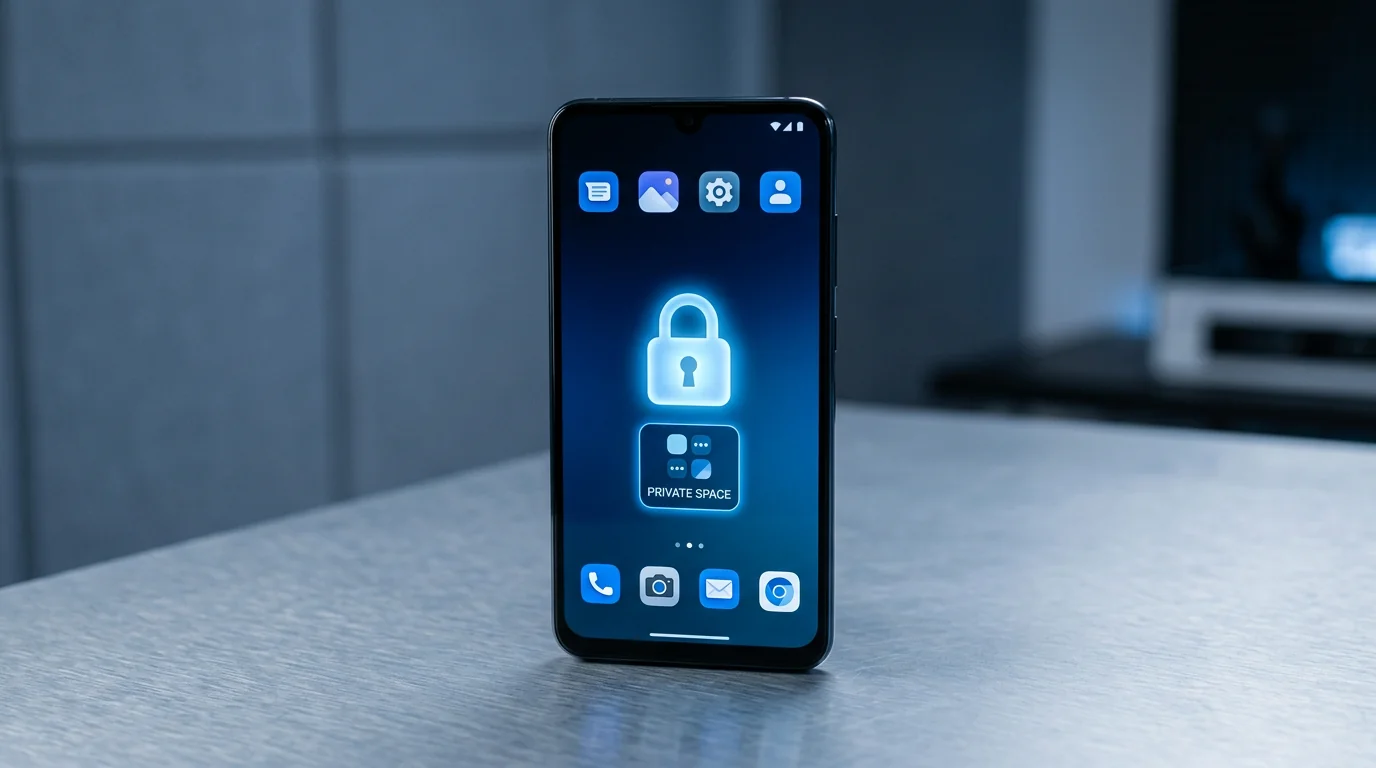 Work profile, Secure Folder, or Private Space A locked container
A separate PIN- or biometric-locked space with its own apps. The giveaway: a briefcase badge, a 'Secure Folder' tile, or a locked 'Private Space' at the bottom of the app list.
-
 Disabled — but still installed Off the drawer, still on the phone
An app can be disabled: gone from the drawer, still on the device. The giveaway: it shows under Settings → Apps once you turn on the show system/disabled filter, tagged 'Disabled.'
Notice the pattern. Every one of these leaves a trace in a place Android controls. That’s why the manual hunt below works. You’re not searching for a ghost — you’re checking the lists Android is required to keep.
How to find hidden apps on Android: step by step
Here’s exactly how to find hidden apps on Android. Seven practical checks, from the easiest to the most thorough. You don’t need to be technical for any of them — each one is a short set of taps. I’ve written the paths for a stock or Pixel phone first, then noted where Samsung, Xiaomi, and others differ.
-
 1. Show hidden apps in the app drawer Launcher settings
Open the app drawer, tap the three-dot menu, and look for Hide apps or Show hidden apps. On Samsung: long-press the home screen, then Settings, then Hide apps on Home and Apps screens. On Xiaomi: Settings, search Hidden apps, then spread two fingers apart on the home screen.
-
 2. Settings, Apps, See all apps The master list I trust most
This shows every app with a hidden icon. To also surface disabled apps, tap the three-dot menu and choose show system or disabled. On Samsung: Settings, Apps, three-dot menu, Show system apps. Its one blind spot is a locked Private Space (more below).
-
 3. Google Play, Manage apps & device Account download history
Open the Play Store, tap the profile picture, then Manage apps & device, then Manage. The list shows installed apps; filter This device versus Not installed. It cross-checks everything on the Google account, even if an icon was hidden.
-
 4. Digital Wellbeing / usage Time on an app doesn't lie
Settings, Digital Wellbeing & parental controls, Dashboard (on Samsung: Settings, Digital Wellbeing). It shows time spent per app. The tell: an app that logs real hours but you never see on the home screen.
-
 5. Hunt for disguised vault apps Spot the decoys
Scan the full list for a duplicate calculator, clock, or notes app, or any 'utility' that opens to a PIN pad. Flag anything that looks like a plain tool but asks for a password. We decode these in the next section.
-
 6. Check for cloned / dual apps A second, private copy
Look for two copies of the same messaging app. On Samsung: Settings, Advanced features, Dual Messenger. On Xiaomi: Settings, Apps, Dual apps. A second WhatsApp, Instagram, or TikTok is often a second, more private account.
-
 7. Check separate containers Work profile & Secure Folder
Legitimate locked areas with their own apps. A work profile shows a small briefcase badge. Samsung Secure Folder is a separate encrypted space: Settings, Security and privacy, More security settings, Secure Folder.
There’s one locked area even these checks can’t open — Private Space (Google’s newest, on Android 15 and later). It sits at the bottom of the app list, and can be locked and hidden behind a PIN or fingerprint.
You can tell a Private Space exists, but not what’s inside — not from Settings, and not even from ADB — until it’s unlocked.
For a hidden second social app, like a second TikTok, the dual-app check above is usually where it surfaces.
The one check that catches almost everything: Settings → Apps → See all apps lists every installed package — hidden icon or disabled. The only exception is an app sealed inside a locked Private Space (Android 15), hidden even here until you unlock it.
Here’s a quick-reference of the seven checks — keep it for a five-minute monthly sweep:
| The check | What it catches | Where |
|---|---|---|
| App drawer → Hide apps | Icons pulled out of the drawer | Launcher settings |
| Settings → Apps → See all apps | Everything installed, incl. disabled | Settings |
| Play Store → Manage apps & device | The account’s full download history | Play Store |
| Digital Wellbeing | Apps that log time but show no icon | Settings |
| Vault-app hunt | Disguised calculators, clocks, notes | App list |
| Dual / clone check | A second WhatsApp, Instagram, or TikTok | OEM settings |
| Containers: Secure Folder / Private Space | Locked, separate app spaces | Settings |
People imagine an app can bury itself where the phone can’t see it. That’s not how Android works. The operating system maintains a registry of every installed package, and Settings → Apps reads straight from it — a hidden icon only tells the launcher not to draw a shortcut. So-called “vault” apps aren’t magic either; they’re just ordinary apps with a PIN on a folder. If it’s installed, it’s on the list. Full stop.

Work through those seven checks and you’ll have found essentially anything a teen can hide with built-in tools. For the rare case where you want a complete package-level inventory, there’s one more optional step.
For tech-savvy parents: list every package with ADB (optional)

If you’re comfortable with a computer and a command line, ADB gives you the most complete inventory possible. On the Android, enable Settings → About phone → tap Build number 7 times → Developer options → USB debugging. Connect the phone to a computer with a USB cable, then run:
adb shell pm list packagesAdd -3 (adb shell pm list packages -3) to list only user-installed apps and filter out the system ones. This dumps every installed package name outside a locked container — the most complete inventory of ordinary apps. (A locked Private Space is credential-encrypted, so its apps stay sealed even from ADB until it’s unlocked.)
ADB needs command-line comfort, and you should get the platform tools only from Google’s official Android developer site — never a random “ADB installer.” You do not need to root the phone — ADB works on a standard device. It also won’t open a locked Private Space or Secure Folder by itself. Most parents never need this step.
For nearly everyone, the seven checks above are plenty. What trips parents up most isn’t finding an app — it’s recognizing the ones dressed up to look like something harmless.
How do you spot disguised “vault” apps?
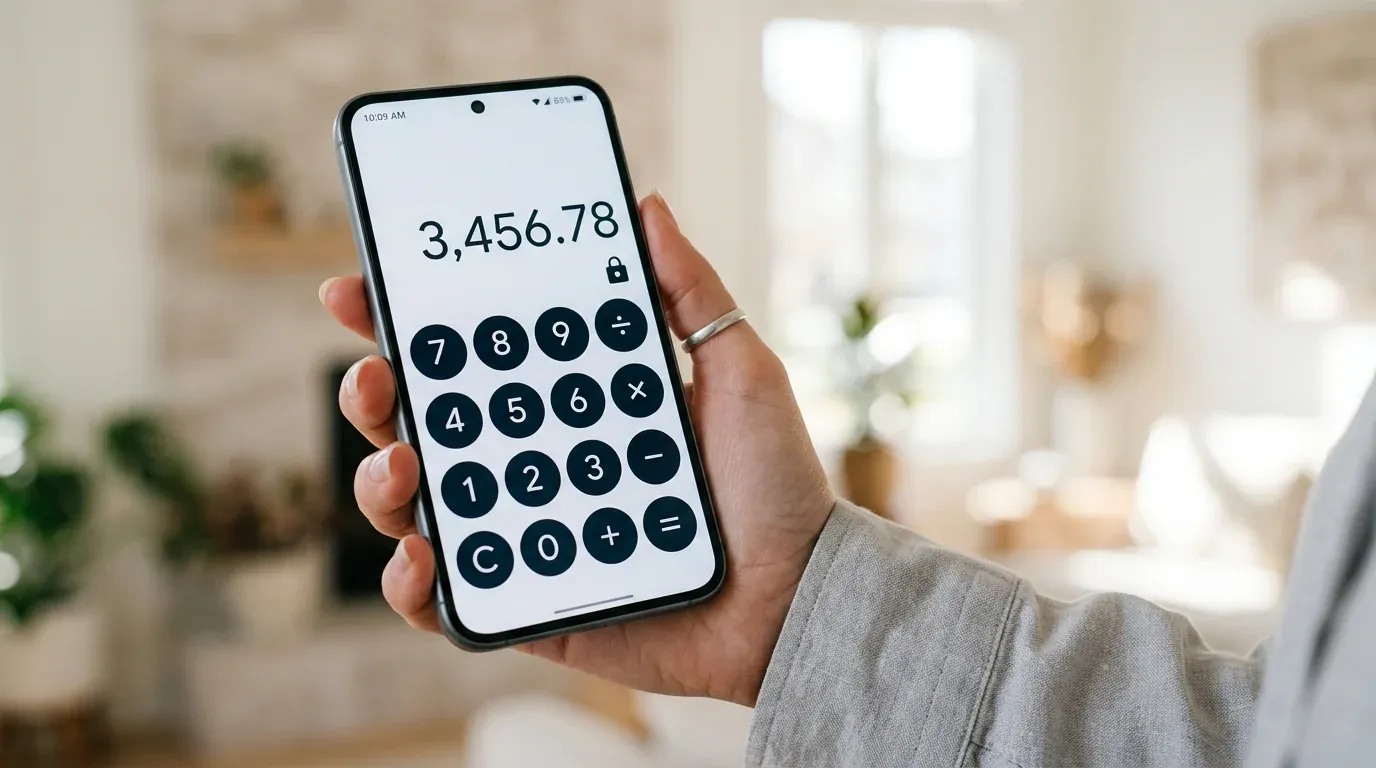
The trickiest apps to catch are the disguised ones. A “calculator vault” or “app hider” looks exactly like an ordinary tool — a calculator, a clock, a sound recorder. But punch in a secret code and it opens a PIN-locked gallery of photos, videos, or files.
They’re marketed openly as privacy apps, so they’re not malware. They’re just built specifically to keep a parent from looking. The good news: they give themselves away in three ways.
That last point is the strongest tell. Two things give a vault away — its permissions and its size.
Check Settings → Apps → [the app] → Permissions. A real calculator only does math. The permissions that expose a vault are the ones it has no business wanting — Contacts, SMS or call logs, Microphone, or Location. Storage, and even Camera, can be legitimate — Camera powers the 'intruder selfie' that photographs whoever types a wrong PIN — so weight the others more heavily.
A real calculator is only a few megabytes. Vault apps install at roughly 8–30 MB, then grow well beyond that as photos and videos pile up inside. Check the app's Storage figure on the same screen.
The classic tell: a second calculator, or a “clock” that asks for a PIN, is almost always a decoy — it’s really a locked photo and file vault, not the tool it pretends to be. Confirm it by checking its permissions.
If you find one, don’t panic and don’t assume the worst — a vault can hold anything from ordinary private photos to something you’d genuinely want to discuss. Note that it exists, then move to the calm-conversation step later in this guide. First, though, an honest limit of the manual hunt.
Why isn’t a one-time check enough?
Here’s the honest catch. You can find an icon today, but a manual check has two blind spots.
It shows you that an app exists — not what's inside, or how much it's used. And more important: a deleted app can be reinstalled tomorrow. You look this week and find nothing. Next week, a hidden app is quietly back.
Manual checks are a snapshot. They're great for a one-time audit, and everyone should do one. But a snapshot can't tell you what changed while you weren't looking — and change is exactly what matters with a curious teenager.
That’s the gap ongoing awareness fills. No hype — just the honest limit of a single check.
How do you stay aware over time with Hoverwatch?

Best for: a running list of installed apps, app-usage, and new-install alerts — viewed from any browser.
Want to turn a one-time hunt into continuous awareness? This is where a monitoring app like Hoverwatch fits. I'm putting it last on purpose — for many families, the checks above are enough.
Hoverwatch installs on the Android itself: a one-time, in-hand setup with permissions. After that, you read everything from a web dashboard in any browser.
For this guide, three parts matter most: the installed-apps list, the app-usage view, and new install and uninstall alerts. So if a hidden app is deleted and reinstalled, it resurfaces instead of slipping back unnoticed. It also reports messages, calls, and location.
Prefer to weigh dedicated tools side by side first? See our guide to the best parental control apps for Android. And note this kind of monitoring can be set up without rooting the phone.
The reason a monitoring app can keep a live inventory is the same reason your Settings screen can: Android exposes the installed-package list to apps with the right permissions. There’s no secret sensor involved — it’s reading the same registry you can read by hand, just continuously and with a timestamp on new installs. That’s genuinely useful for catching a reinstall, but understand what it is: a running readout, not X-ray vision into a locked vault.
Now the honest limits, because “undetectable” is marketing, not reality:
Because it goes deeper than a manual check, treat Hoverwatch as awareness after a conversation, not a covert first move. Android updates can also reset permissions and break capture — so plan to re-check settings after any big update.
Used openly, it becomes a shared rule rather than a secret: “I’ll get an alert if a new app appears, and then we’ll talk.” And talking is exactly what comes next.
What should you do when you find a hidden app?

Finding a hidden app is the beginning, not the verdict. The instinct is to delete it immediately and demand answers — resist that.
Deleting an app without a word usually just teaches better hiding next time. You win the battle and lose the visibility.
Instead, take three steps.
-
 1. Note what it is Identify before you react
A harmless game hidden to dodge a screen-time limit is very different from a vault app, or a chat app with strangers. Name the app and what it actually does before deciding anything.
-
 2. Judge the actual risk Match reaction to reality
Match your reaction to what you found, not to the surprise of finding it. A private diary app is not a stranger-danger emergency. Weigh the real risk, calmly, before you say a word.
-
 3. Have a calm conversation Curiosity, not accusation
Lead with curiosity, not accusation: 'I noticed this — tell me about it.' A calm talk keeps the door open. An interrogation just teaches better hiding next time.
Turn on new-install alerts so a hidden app becomes a dialogue, not a cat-and-mouse game. When your teen knows you’ll simply see new installs and ask about them, hiding loses most of its point.
That framing — awareness that leads to a talk — is what actually protects a kid over time. Deleting is a one-day fix. Trust is what keeps them safe when you’re not looking.
What are the risks — and how do you stay safe?
The biggest risk in all of this isn’t your child’s hidden app. It’s the “hidden-app finder” itself. Searching for a quick fix leads straight to shady sites promising a “free APK that scans any phone instantly.” Those are a top vector for malware and data theft, and installing one puts your family’s phones at risk.
A “free hidden-app finder APK” or “spy scanner” downloaded from a random website is one of the fastest ways to get malware onto your own phone. Real detection happens on the device (Settings, Play Store, usage) — install only from Google Play or official sources. (The FTC warns that untrusted links and downloads can hide malware.)
A few more cautions.
Anything advertising 'find any hidden app remotely by phone number' is a scam. Real detection always touches the actual device.
Stealth 'spy' tools live in privacy and terms-of-service gray areas. Stick to established names with a published privacy policy.
Rooting weakens the phone's security and voids protections. That opens a bigger hole than the one you were investigating.
Careful choices here keep the whole family safer. Which leads to the last question parents ask.
Is it legal to check your child’s Android for hidden apps?

In the US, a parent or legal guardian can generally check their own minor child (17 or under) on a device they own or manage — even without asking first. That said, disclosure is the best practice child-safety experts recommend. The American Academy of Pediatrics’ Family Media Plan frames the rules as something to build and discuss with your kids, not impose in secret.
The lines to respect are about adults — and about how you monitor.
Secretly monitoring a spouse or another adult without consent can cross into illegal territory under the federal Wiretap Act (part of the ECPA). In fact, the FTC treats covert adult monitoring as stalkerware.
Capturing calls can trigger one-party versus all-party consent rules that differ by state. As of 2026, 12 states require all-party consent — including California, Florida, Illinois, Pennsylvania, and Washington. The rest, and D.C., are one-party, so disclose rather than record covertly.
Simple rule of thumb: your minor child on a device you own = generally fine, disclosure encouraged; another adult without consent = don’t. This is general information, not legal advice — check your state’s rules, or consult a lawyer about your specific situation, if you’re unsure.
Kids hide apps for ordinary reasons — privacy, embarrassment, dodging a screen-time rule — far more often than dangerous ones. The ‘delete-and-interrogate’ reflex almost always backfires: it teaches the child to hide better and to trust you less. What actually works is turning detection into a conversation. I tell parents to use new-install alerts as a prompt to talk, not a trap to spring. A kid who knows you’ll notice a new app, and that you’ll ask about it calmly, has far less reason to hide one in the first place.

Get consent when in doubt, lean toward openness with your teen, and you stay on the right side of both the law and the relationship. Here are the questions parents ask most.
Final Thoughts
Nothing truly hides on an Android phone if you know where to look. Start with the app drawer’s hidden-apps list. Trust Settings → Apps → See all apps as the check that can’t be dodged, then cross-reference the Play Store and usage stats.
Then watch for disguised vaults and locked containers. That’s how to find hidden apps on Android — without a single sketchy download.
The most important part isn’t the finding — it’s what you do next. Match your response to the risk, not the surprise. And remember: a check today won’t stop a reinstall tomorrow. That’s why openly-agreed, ongoing awareness beats a one-time sweep.
Check with care, and your awareness becomes a bridge to your child, not a wall between you.
Frequently Asked Questions
-
Common worry. A manual check — opening Settings → Apps, the Play Store list, or Digital Wellbeing — leaves no trace and sends no notification, so simply looking is invisible. It's different once you install something: a monitoring app can be spotted by a tech-savvy teen, flagged by Play Protect, or noticed after a battery-life dip. Either way, the approach that holds up long-term isn't secrecy — it's telling your child you'll occasionally check, and why. Kids who expect a calm look-through have far less reason to build elaborate hiding in the first place.
-
Yes — hiding an icon doesn't switch the app off. A hidden app keeps running in the background: it can still push notifications, use mobile data, and drain battery. That's actually useful to you. A notification from an app you can't see on the home screen is a giveaway, as is an unfamiliar name high in Settings → Apps → [app] → Mobile data or battery usage. If something quietly pings alerts or uses data while staying invisible on the home screen, open Settings → Apps → See all apps and match the name — the app is there, icon or not.
-
For younger children, often yes. Family Link is free, lists the apps installed on the child's device, and can alert you to new installs — enough for many under-13 setups. Two limits matter as they get older: a teen aged 13+ can, in some cases, turn off supervision, and Family Link won't see inside a locked vault app or a Private Space. If you want a continuous installed-apps and usage trail with new-install alerts that survive a re-hide, a device-level monitor goes further. Most US pediatric guidance (AAP) favors transparent monitoring at any tier — tell them it's on.
-
Short answer: for your own minor child, on a device you own or manage, generally yes — even a 17-year-old is still a minor. Disclosure is strongly recommended, and it matters more the older they are. Where it changes is with adults: secretly checking a spouse or another adult without consent can violate the federal Wiretap Act (ECPA), and state call-recording consent rules vary. Rule of thumb: your minor kid on your device is fine; another adult without consent is not. This is general information, not legal advice — check your state's rules if you're unsure.
-
It's a move some teens try, and it's worth understanding. A factory reset erases everything — the hidden app, but also any monitoring you set up and all the phone's data. Two things follow. First, apps tied to the Google account often reappear once the phone is signed back in, so a re-audit a few days later usually finds what came back. Second, an out-of-nowhere reset with no cracked screen or resale reason is itself a flag worth a calm conversation. If you use new-install alerts, they resume once the phone is set up again and apps return.
You May Also Like
 How-To & Guides
 How-To & Guides
 How-To & Guides
 How-To & Guides
 How-To & Guides
 How-To & Guides
Not Invisible
Hidden almost never means invisible malware — it's usually an icon pulled from the drawer or a disguised vault. Android still lists every package in Settings.
The Unbeatable Check
The one check that can't be dodged is Settings then Apps then See all apps — Android has to list every installed package, hidden icon or not.
Spot the Decoy
A second calculator, or a clock that asks for a PIN, is the classic decoy — it's really a locked photo and file vault, not a math app.
One Look Isn't Enough
Finding the icon doesn't show what's inside or stop a reinstall tomorrow — that's the gap ongoing awareness fills.
Catch the Re-install
Hoverwatch keeps a running installed-apps list and pings you on new installs, so a deleted-then-reinstalled app resurfaces. It's Android-only and views, not blocks.
Find, Then Talk
Deleting a hidden app without a word usually just teaches better hiding. Note what it is, weigh the risk, then talk.
Skip the Sketchy APK
The riskiest move is installing a random hidden-app-finder APK — a top way to get malware on your own phone. Stick to Google Play.