
















Parental Control Android: 7 Best Apps Tested in 2026

The best parental control apps for Android in most cases are Google Family Link for free basic controls (kids under 13), Qustodio for comprehensive transparent monitoring, and Hoverwatch when you need complete stealth visibility into a teen’s phone.
Where stealth claims, bypass methods, or AI-detection accuracy come up, I cite real Reddit threads — not vendor marketing.
The harder part isn’t picking from a feature list. It’s matching the right architecture to your family’s actual situation.
What Are Parental Control Apps and How Do They Work on Android?
Parental control apps for Android monitor, restrict, or track your child’s Android phone activity. They range from simple screen-time limiters to monitoring tools that capture everything on the device. Two architectural methods, two app categories — here’s how each works:
-
 Device Administrator Method 1 — enforces restrictions
Lets the app enforce restrictions and prevent uninstallation. Used by Family Link, Qustodio, and Norton Family for blocking apps and locking screen time.
-
 Accessibility Services Method 2 — reads screen content
Enables the app to read screen content and monitor activity in real time. Used by stealth tools like Hoverwatch to capture messages, taps, and screenshots.
-
 Parental control apps Blocking-focused
Child usually knows they're installed. Limit apps, screen time, and web content. Examples: Qustodio, Family Link, Norton Family.
-
 Monitoring apps Visibility-focused
Can run hidden on the device. Capture messages, calls, location, and screenshots. Examples: Hoverwatch, mSpy.
Both methods are documented Android APIs — no rooting required. You install legitimate apps from the Google Play Store or the vendor’s website.
Legal: monitoring a device your child owns or uses requires parental consent in most jurisdictions. This guide assumes you’re monitoring your own minor child.
Apps that demand root access cause more problems than they solve and void device warranties — skip them. Installation typically takes 10–15 minutes; you’ll need physical access to your child’s phone and their Google account password for initial setup.
Does Android Have Built-In Parental Controls?

Yes, Android includes free parental control apps for Android through Google Family Link and, for Samsung devices, Samsung Kids Mode. For many families with younger children, these built-in parental control apps for Android are sufficient.
Google Family Link
Family Link is Google’s official parental control app for Android. It’s free, works on any Android device running Android 5.0+, and integrates directly with Google accounts.
 What Family Link Does Well:
- Screen time limits and scheduling (bedtime mode)
- App approval before downloads
- Location sharing (see where your child's phone is)
- Content filtering in Google Play and Chrome
- Activity reports showing most-used apps
 What Family Link Cannot Do:
- Read text message content
- Monitor social media messages
- Run in hidden/stealth mode
- Capture screenshots or detailed app activity
- See content inside third-party encrypted messengers
In my testing, Family Link works reliably for kids aged 8-17 who don’t actively try to bypass it.
A recent policy change matters here: Google now requires parental approval for teens to end Family Link supervision. The old “child can opt out at 13” rule is gone.
Supervision now continues until you stop it or the child turns 18. Until 2025, Family Link basically expired the day a child hit 13, which pushed many parents toward paid apps just for the teen years.
Some features still soften after 13. YouTube supervision options change, and some app restrictions can be appealed by the teen via Google.
Family Link at 16 isn’t identical to Family Link at 10. Verify current behavior at Google For Families help.
With the rule reversed, Family Link is a credible long-term backbone — and your decision becomes about layering, not replacing.
Verdict: start with Family Link if your child is under 18. Upgrade to a paid app only when you need message content, social monitoring, or stealth.
Samsung Kids Mode
Samsung Kids Mode is designed for Samsung tablets and phones, primarily for young children (under 8). It creates a restricted environment with kid-friendly apps and content.
This isn’t a true parental control app for Android. It’s more of a “kid mode” that keeps younger children in a safe app environment. Parents with older children need something more comprehensive.
I’ve installed Family Link on my own kids’ phones and tested it on a dozen review devices. For a 10-year-old, it’s perfect — screen time limits hold, app approvals work, location is reliable. The real frustration hits at age 13 when Google hands control back to the child. That’s when parents typically move to a third-party app, and most aren’t prepared for how different the landscape looks at that point.

What Are the Best Parental Control Apps for Android?

After testing multiple parental control apps for Android, these seven stand out. Each serves a different purpose, and I’ll be direct about when you should and shouldn’t use each one.
Before diving into the deep reviews, here’s a quick at-a-glance look at the top three picks for the most common parental control needs:
-
 Family Link Best Free Built-In Option
Google's free supervision app — solid screen-time limits, app approvals, and location for kids under 13. Best starting point for younger children, then layer a second app if you need SMS or social-media visibility.
-
 Qustodio Best All-Around Paid Option
Excellent web filtering, app blocking, and screen-time controls across Android, iOS, Windows, Mac. Strong dashboards. Doesn't read SMS content — pair with MMGuardian or Hoverwatch if texts matter.
-
 Hoverwatch Best for Complete Stealth Monitoring
Runs hidden on Android, captures SMS content, calls, WhatsApp, GPS, and ambient context. Use only when transparent tools have failed and you have a serious safety concern.
Now to the detailed reviews of these parental control apps for Android — what each app does well, where it falls short, and who it’s actually right for.
#1 Hoverwatch — Best for Complete Monitoring

Hoverwatch is a stealth monitoring app that runs completely hidden on Android devices. If you need to see everything your child does on their phone without them knowing, this is the most comprehensive option I’ve tested.
- Full SMS and call log with content
- WhatsApp, Telegram, Snapchat, Facebook Messenger
- Deleted message recovery
- Email + browser history
- Real-time GPS + location history
- Screenshot capture of all activities
- Ambient audio recording
- Runs invisible — no app icon, hidden from task manager
Important distinction: Hoverwatch is a monitoring app, not a parental control app. It doesn’t block websites or limit screen time — you see everything but you don’t control anything remotely.
That fits situations where awareness matters more than restriction. If you need both visibility and active blocking, pair Hoverwatch with Family Link, or use Qustodio instead.
Now to the trade-offs you’ll actually live with on Android:
 Best For
Parents who need complete visibility into their child's phone activity, especially for serious safety concerns, suspected dangerous contacts, or when other approaches haven't worked.
Best For
Parents who need complete visibility into their child's phone activity, especially for serious safety concerns, suspected dangerous contacts, or when other approaches haven't worked. Price
$29.95/month, $59.95/quarter, $99.95/year. 3-day free trial available. Per-device cost works out to ~$8.33/month on the annual plan.
Price
$29.95/month, $59.95/quarter, $99.95/year. 3-day free trial available. Per-device cost works out to ~$8.33/month on the annual plan.Every stealth monitoring app on Android — Hoverwatch, mSpy, FlexiSpy — runs into the same architectural constraints. Physical access is required for installation, Google Play Protect must be off, and no-root capability covers most features but not all.
Where they differ is reliability, refund policy, and how aggressively the user is upsold. In our testing Hoverwatch had the fewest “permission broke this week” complaints among Android stealth options.
Stealth disclaimer: no Android monitoring app is fully invisible. Skilled teens can spot battery drain, data usage, or extra device admins.
If your situation calls for stealth, the 3-day trial is the only way to verify it works on your child’s specific Samsung, Pixel, or Xiaomi model — Android skin variations matter more than the marketing admits.
Try Hoverwatch free for 3 days →
#2 Qustodio — Best All-Around Parental Control

Qustodio is the most complete transparent parental control app. Your child knows it’s installed, and it combines monitoring with blocking features.
- Web filtering across 30+ categories
- Screen time limits and scheduling
- Per-app time limits and full app blocking
- Bedtime / school hours profiles
- Detailed daily and weekly activity reports
- Real-time location tracking with history
- Social media usage monitoring (app-level, not message content)
- Panic button — child's emergency alert to all guardians
Verdict: Qustodio is what most people picture when they hear “parental control app” — reliable, transparent, strong web filtering.
The trade-offs come from the transparency. Your child sees the app, knows it’s installed, and can see what’s blocked. That’s by design — but it changes the dynamic vs stealth tools.
Best For
Parents who want comprehensive controls with their child's knowledge. Good for families who prefer an open approach to digital supervision.
Price
Free plan (limited), Basic $59.95/year (5 devices), Complete $109.95/year (unlimited devices). 30-day money-back guarantee.The Free plan is limited enough to be a feature trial only — useful for one quick test, not a real long-term option.
If you commit, the Complete tier unlocks the unlimited-device cap most families with two phones plus a tablet will eventually need.
#3 Bark — Best for Alert-Based Monitoring

Bark takes a different approach from most parental control apps for Android. Instead of showing you everything, it uses AI to scan content and only alerts you when it detects potential issues.
- Content scanning across 30+ apps and platforms
- Alerts for cyberbullying, self-harm, violence, sexual content
- Email and text content analysis
- You see flagged items, not full message logs
- Screen time management and scheduling
- Web filtering with category blocks
- Location tracking and check-in
- iOS setup needs a desktop bridge — slower install
A research from The Trevor Project documents a real concern: Bark’s AI flags benign LGBTQ+ content as “severely sexual/explicit.” That includes drag Queen makeup videos, transition checklists, and posts mentioning non-binary identity.
Bark’s classifier may have changed since these reports, but the pattern was consistent enough to flag a real risk. If your teen is closeted or exploring identity, Bark could out them to unaccepting parents.
Bark caveat: AI false-positives are common, especially around LGBTQ+ content. Read alerts as starting points for conversation, not verdicts.
The alert-based design is Bark’s biggest strength and weakness in one feature: it respects teen privacy more than full-content tools, but you sometimes miss context.
Best For
Parents of teenagers who want to be alerted to serious issues without reading every message. Works well when you want a safety net, not surveillance.
Price
Bark Jr (filtering/screen time): $5/month or $49/year. Bark Premium (full monitoring): $14/month or $99/year. 7-day free trial on both tiers.If you’re choosing between Bark Jr and Premium: Jr is genuinely limited — no AI content scanning, just filters and screen time.
Most parents who want Bark really want Premium. Jr is essentially Bark’s answer to Family Link at the same price point.
#4 Norton Family — Best Web Filtering

Norton Family is the parental control arm of Norton’s security suite. If web filtering is your primary concern, this is strong competition.
- Industry-leading web content filtering
- Search term monitoring across browsers
- YouTube video supervision
- School-time profile presets
- Screen time supervision and limits
- Real-time location tracking
- App usage monitoring (which app, how long)
- Instant device lock from parent dashboard
Verdict: Norton Family does web filtering better than most. But if you need messaging visibility or comprehensive monitoring, look elsewhere.
The pricing makes more sense if you already pay for Norton 360 — Family is bundled into the Deluxe and Premium tiers at no extra cost.
Best For
Families already using Norton security products, or parents whose primary concern is inappropriate web content rather than messaging.
Price
$49.99/year (unlimited devices). Often bundled free with Norton 360 Deluxe ($54.99 first year) and Premium tiers.#5 FamiSafe — Best Budget Option

FamiSafe from Wondershare offers decent parental control features at a lower price point than most competitors.
- Screen time limits with daily/weekly schedules
- App blocking and per-app time limits
- Web filtering with category presets
- Browser history tracking
- Location tracking with geofencing alerts
- YouTube content monitoring (better than most peers)
- Driving reports — monitors phone use while in motion
- Suspicious photo / explicit content detection
Where FamiSafe earns its place: YouTube monitoring is genuinely better than competitors at this price point.
If your kid lives on YouTube and that’s your specific worry, FamiSafe offers real value the bigger names don’t match. For comprehensive control across all apps, Qustodio is the better fit.
The lower price comes with trade-offs: less polished interface, slower customer support, and less accurate location tracking than Qustodio or Norton.
Best For
Parents who need basic monitoring and controls without the premium price. Good starter option to see if parental controls help your family.
Price
$9.99/month, $19.99/quarter, $59.99/year. Annual plan covers up to 10 devices.#6 mSpy — Stealth Monitoring Alternative

mSpy is a direct competitor to Hoverwatch in the stealth monitoring category. It’s been around longer and offers similar comprehensive monitoring.
- SMS and call log content
- WhatsApp, Snapchat, Instagram, Telegram messages
- Email monitoring
- Keylogger across system text input
- Location tracking with geofencing alerts
- Screen recording (Premium tier)
- Hidden mode operation (with caveats — see below)
- Most features work without root
The gap between mSpy’s marketing (“undetectable”) and Android reality is real for many users — the Coalition Against Stalkerware documents the recurring complaints. After install a visible notification icon often appears, Google Play Protect must stay off, and permissions break periodically.
Android 15 specifically tightened background app behavior — what worked on Android 12 may not work the same way today. Before committing $140+/year, run the paid trial on the actual target device and verify the notification icon doesn’t appear on your child’s specific phone model.
The brand recognition advantage is real — mSpy has been around since 2010, longer than most parental control apps for Android — including Hoverwatch’s monitoring product. Whether that legacy matters depends on whether brand or current Android compatibility weighs more for you.
Best For
Parents wanting stealth monitoring who prefer an established alternative to Hoverwatch — be aware of the user-reported issues above and verify on your specific device during a paid trial month.
Price
$48.99/month, $27.99/month (quarterly), $11.66/month (yearly = $139.92). Higher Extreme and Ultimate tiers ($23.99-$40.83/month) add features like keylogger and call recording.Brand recognition is the main reason mSpy still appears on most spy app and parental control apps for Android comparison lists. It’s been around since 2010, and parents searching for stealth monitoring run into its ads first — that doesn’t make it the better choice, just the more familiar one.
Run the trial, compare against Hoverwatch’s free trial on the same device. Pick on observed behavior, not on which name you saw most often in Google.
Verdict: mSpy and Hoverwatch are the two serious stealth options on Android. Hoverwatch offers better value and fewer operational complaints in my testing.
If neither stealth option fits your situation, the last app on this list takes a narrower angle — text and call monitoring as a complement to Family Link rather than a full replacement.
#7 MMGuardian — Good for Text Monitoring

MMGuardian focuses specifically on call and text monitoring with strong blocking features. It’s not as comprehensive as others but does its niche well.
Key Android Features:
- SMS text message monitoring (content visible)
- Call blocking and monitoring
- Web filtering
- Works alongside Family Link
- App controls
- Screen time limits
- Location tracking
Best For
Parents primarily concerned with who their child texts and calls. Good supplement to Family Link if you need SMS visibility.
Price
$49.99/year (Single Device — covers one Android phone, iPhone, or iPad), $99.98/year (Family — up to 5 child devices). 14-day free trial.Verdict: MMGuardian is one of the few apps that complements Family Link rather than replaces it — useful when Family Link works but SMS visibility is missing.
That covers the seven apps individually. The real question is how they stack up side by side on the things that determine daily usability — price, what gets monitored, and what the app needs from your child’s device.
Quick Comparison: Android Parental Control Apps

Here’s how all seven parental control apps for Android compare on key features:
| App | Price/Year | iOS Support | Root Required | App Blocking | Web Filter | SMS Content | Stealth | Battery Drain |
|---|---|---|---|---|---|---|---|---|
| Hoverwatch | $99.95 | Jailbreak only | No | No | No | Full | Yes | ~10-15% |
| Qustodio | $59.95–109.95 | Yes | No | Yes | Excellent | No | No | ~5-8% |
| Bark | $49–99 | Yes (with desktop bridge) | No | Basic | Yes | AI scans only | No | ~5-8% |
| Norton Family | $49.99 | Yes | No | Yes | Excellent | No | No | ~5% |
| FamiSafe | $59.99 | Yes | No | Yes | Good | Limited | No | ~6-10% |
| mSpy | $139.92 | iCloud-based (no install on iPhone) | Most features no, some yes | No | No | Full | Claimed (user reports mixed) | ~10-15% |
| MMGuardian | $49.99–99.98 | Yes | No | Yes | Yes | Yes | No | ~5-8% |
| Google Family Link | Free | Yes | No | Yes | Basic | No | No | ~3-5% |
A few notes on reading the table.
Prices are annual rates for the single-device or smallest paid tier where applicable.
The table tells you what each app technically does — it doesn’t tell you which is right for your child. That depends on age, monitoring philosophy, and what specifically you’re worried about, which the next section walks through.
Which Parental Control App Is Right for Your Child?

Choosing the right parental control apps for Android depends on your child’s age, your monitoring philosophy, and your specific concerns.
Before any app: a phone-use contract
The single most-repeated piece of parenting advice across r/Parenting, r/parentingteenagers, and r/daddit threads on this topic: start with a written agreement, not an app. The app is a guardrail; the contract is the fence.
A parent on r/parentingteenagers, after frustration with multiple apps, summed it up: “You don’t need a technology solution first. You need a contract. And if your kid is violating the contract, he loses the phone for a period of time. Done. Easy.”
A workable phone-use contract covers four things — hours, content, consequences, and review cadence:
-
 Hours of use Name the windows in writing
School nights vs. weekends, bedtime cutoffs, "phone in the kitchen by 9pm" — name the windows in writing, not by repeated reminders.
-
 Off-limits apps & categories Be specific, not vague
Specific apps (Snapchat, Discord), age-rated content categories, and any sites you've already had to talk about. "Social media" is too vague to enforce.
-
 Consequences for breaking rules Agreed in advance, not in anger
One week phone-free for first violation, longer for repeats. Written down and agreed in advance — so the punishment isn't a surprise argument later.
-
 When rules get revisited Every 3-6 months
Revisit every 3-6 months as the child matures. Younger kids need tighter limits; teens earn more autonomy by demonstrating they can handle it.
Parental control apps for Android work for kids operating inside the rules. For kids outside them — those who hide phones, lie about losing them, or circumvent controls twice — the answer isn’t a better app. It’s removing the device until the agreement is renegotiated.
Pick your app from the comparison above based on the situation. Install it as backup to a clear conversation, not instead of one.
For Young Children (8–12)
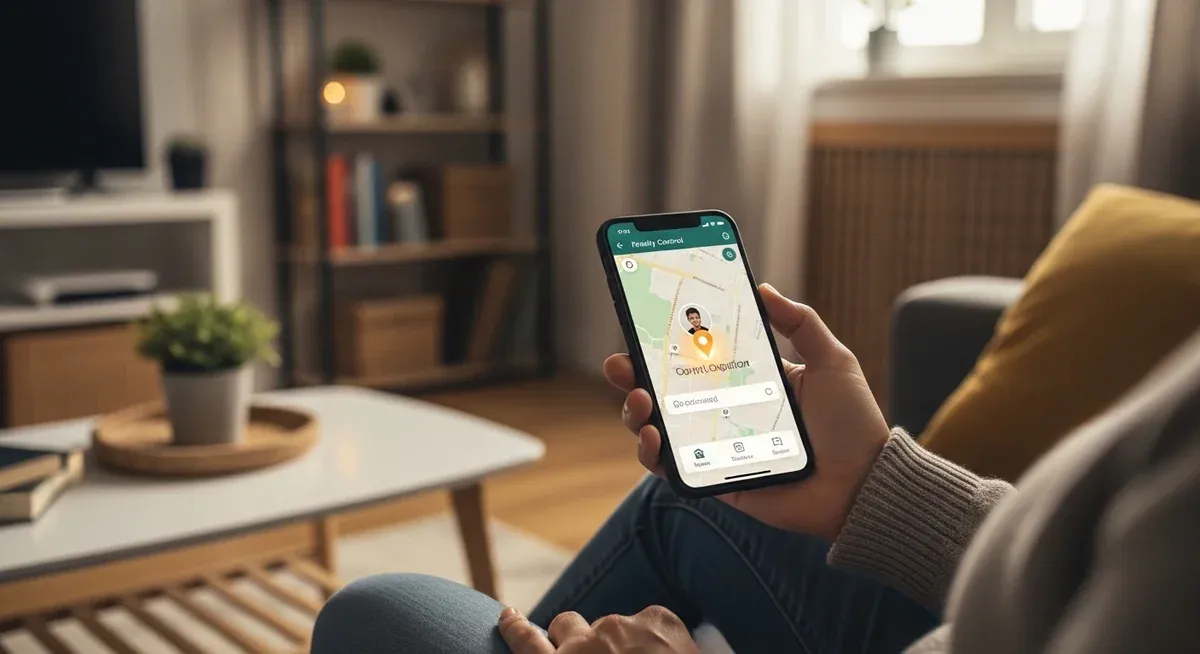
Start with Google Family Link. Seriously.
Kids this age generally don’t try to bypass parental control apps for Android parental controls, and Family Link handles the basics: screen time, app approval, location, and content filtering. It’s free and built into Android.
If you want more comprehensive reports or better web filtering, upgrade to Qustodio. But don’t pay for features you don’t need.
Recommended for 8–12: Free → Google Family Link. Paid → Qustodio ($59.95/year).
The picture changes meaningfully a few years later — and the apps that worked at 10 stop being enough at 14.
For Teenagers (13–17)
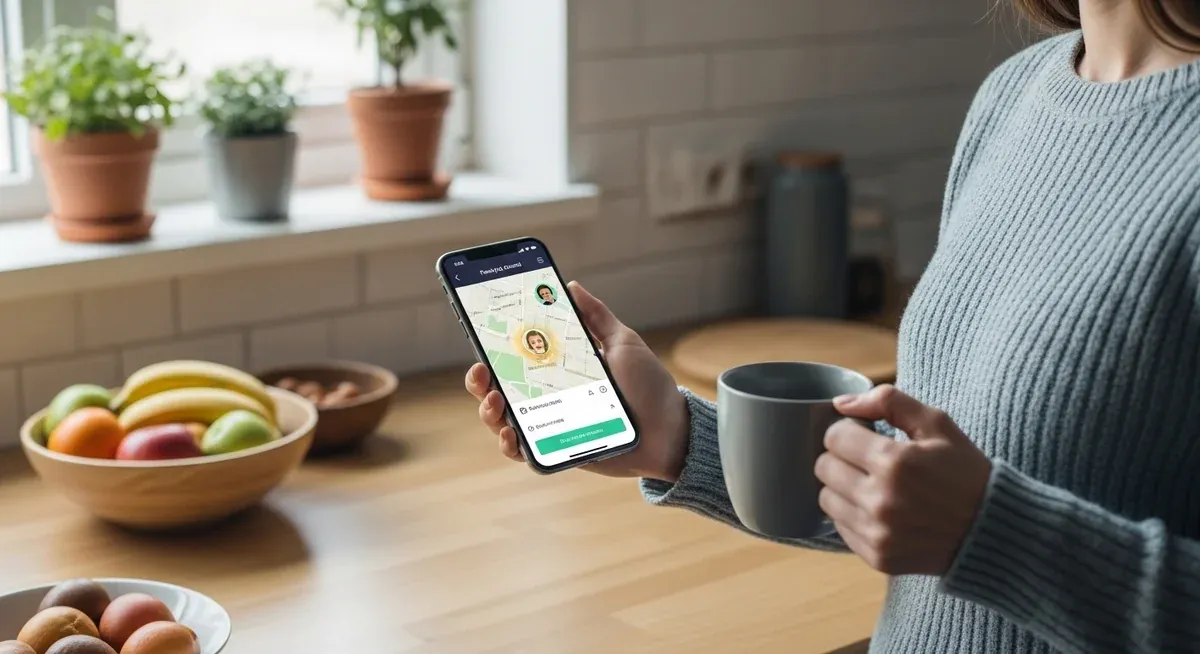
This is where it gets complicated. Teens are smarter, more determined, and using apps that basic parental control apps for Android don’t monitor well.
2026 update: Google now requires parental approval before a teen can leave Family Link supervision — the old “opt out at 13” rule is gone.
Your choice depends on your relationship with your teen and the severity of your concerns:
-
 Trust high + safety net Bark — $99/year
Bark scans for problems without you seeing every message. Good middle ground — you respect their privacy but know if something dangerous surfaces.
-
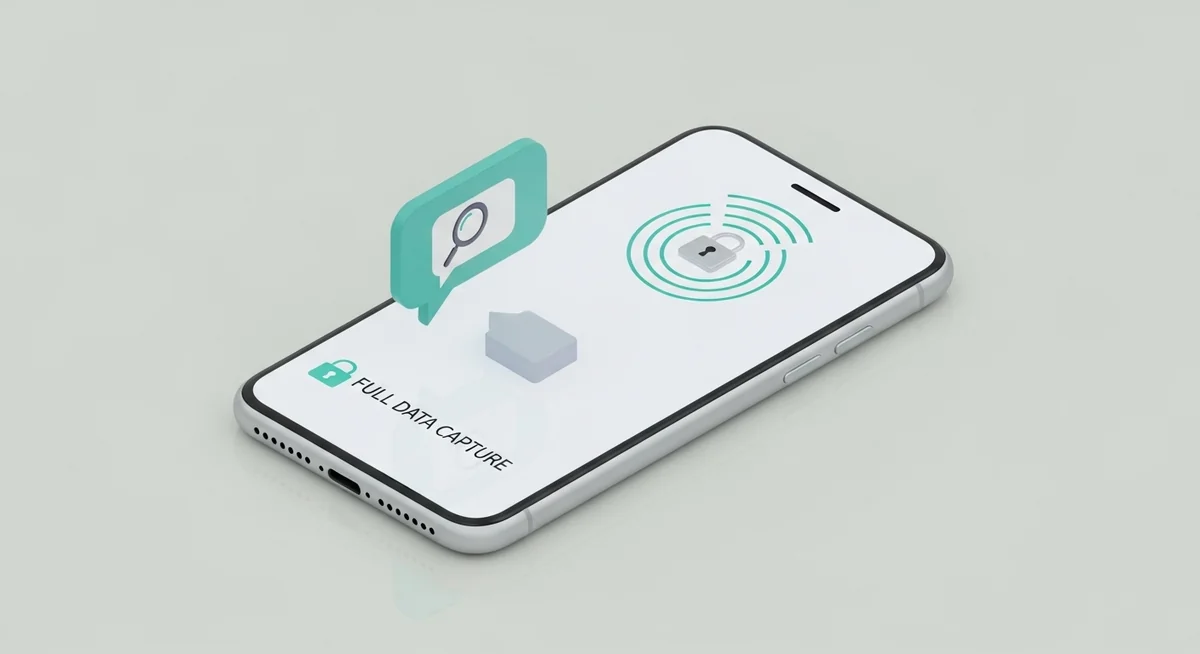 Need complete visibility Hoverwatch — $99.95/year
Hoverwatch shows everything without your teen knowing. Use this when transparency hasn't worked or when the safety concern is specific and serious.
The hardest conversation I have with parents is about stealth vs transparent monitoring. There’s no universal right answer. I’ve seen families where open Family Link + conversations works beautifully; I’ve seen others where a teen was actively hiding dangerous contacts and stealth monitoring was the only way the parent could help. Choose based on your actual situation, not what feels ideologically correct.

Transparent vs Stealth Monitoring
This is ultimately a parenting philosophy decision.
 Transparent monitoring
Family Link, Qustodio, Bark, Norton Family, FamiSafe. Your child knows they're being monitored. Emphasizes open communication and trust. Works well when guidance, not surveillance, is the goal.
Transparent monitoring
Family Link, Qustodio, Bark, Norton Family, FamiSafe. Your child knows they're being monitored. Emphasizes open communication and trust. Works well when guidance, not surveillance, is the goal. Stealth monitoring
Hoverwatch, mSpy. Your child doesn't know. Provides complete visibility without knowledge. Appropriate when there's a serious safety concern, transparency hasn't worked, or you need to see what's happening before talking.
Stealth monitoring
Hoverwatch, mSpy. Your child doesn't know. Provides complete visibility without knowledge. Appropriate when there's a serious safety concern, transparency hasn't worked, or you need to see what's happening before talking.Most family-safety experts recommend transparent monitoring as the default; stealth is reserved for specific, serious safety concerns.
Neither approach is wrong. A parent worried about their 16-year-old talking to strangers online has different needs than a parent managing screen time for a 10-year-old.
Do Parental Control Apps Work Well on All Android Phones?
Most parental control apps for Android work on Android 5.0 (Lollipop) and above. Performance varies by device manufacturer and Android version.
Xiaomi, Huawei, and other Chinese brands often run custom Android versions that restrict background apps more aggressively.
You’ll likely need to adjust multiple settings — Auto-start, MIUI battery saver, and locked app list — to prevent the phone from killing your monitoring app.
Battery: most parental control apps add 5–10% drain. Stealth apps with location and screenshots use more than basic controls.
The other compatibility question parents rarely ask up front, but always run into within a week of installing: can teens bypass these apps? Yes — and on Reddit they openly share the specific methods. Three actually work today:
-
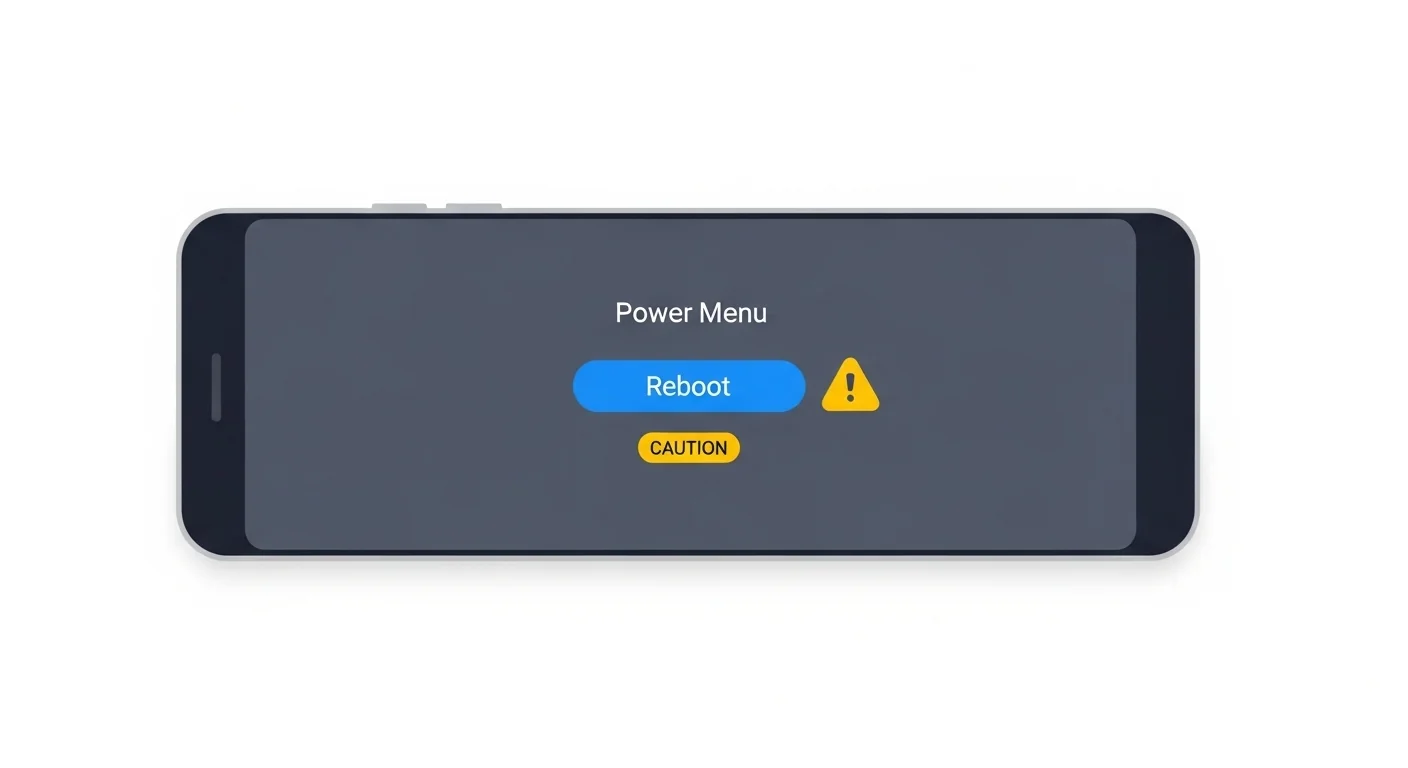 Android Safe Mode Power, then Shut Down, then Safe Mode
Press and hold the power button, then press and hold "Shut Down" — "Safe Mode" appears. Phone restarts running only default apps — no parental control, no VPN, no monitoring. Lock it in device settings if your Android version supports it.
-
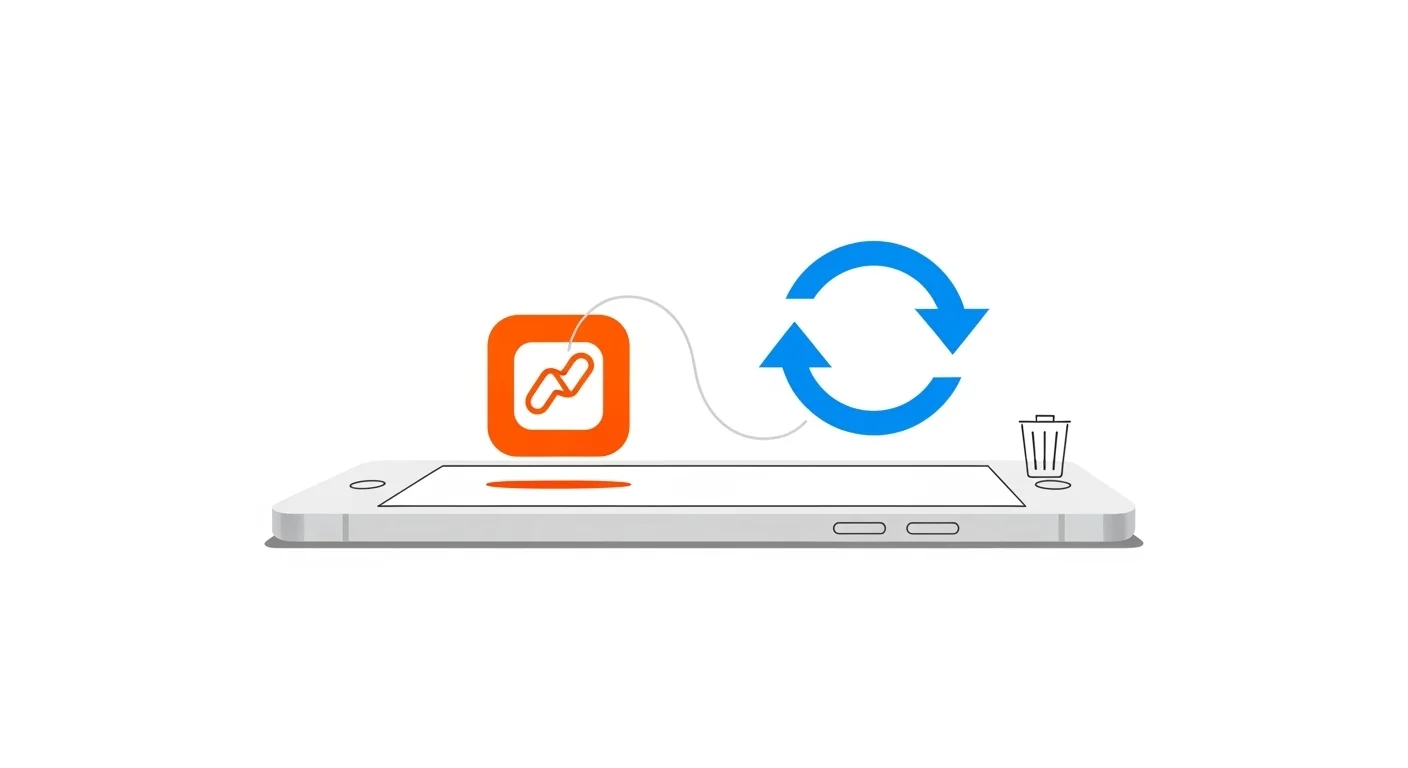 Uninstall + reinstall same day Wipes that day's usage log
Deleting an app removes that day's logged usage. The teen reinstalls before you check, you see no record of the gap. Block app uninstall via Device Administrator settings — most parental control apps offer this, turn it on.
-
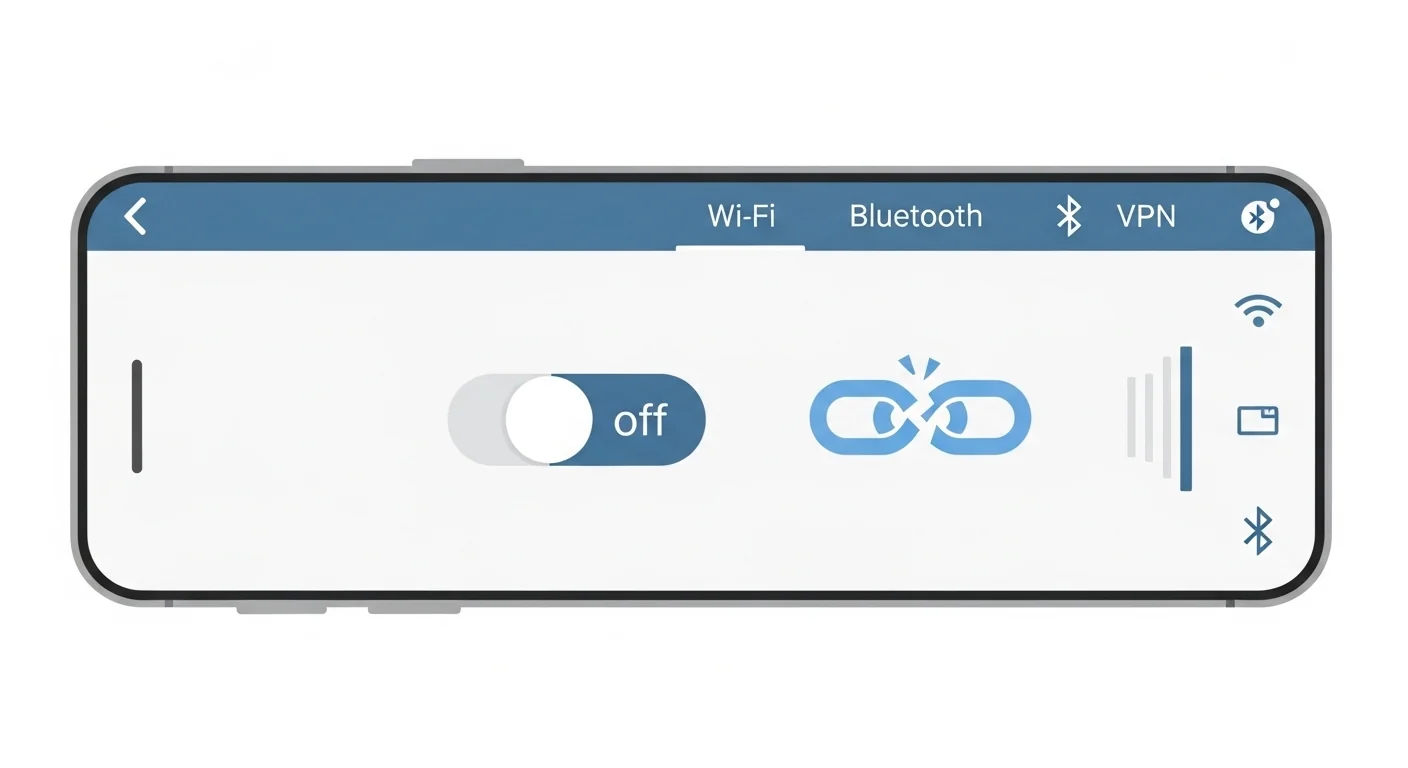 Disable the VPN Settings, then VPN, then toggle off
Qustodio, Bark, and Norton Family route traffic through their own VPN. Toggling it off (or removing the configuration) breaks filtering entirely. Set a separate device administrator PIN your teen doesn't know.
A Reddit parent summed up the pattern: “What would bypass parental controls that goes away when the device is restarted and then hides traces of what they did?” Every method above matches that description.
Stealth apps like Hoverwatch are harder to remove — no app icon to find, no obvious VPN — but the architectural realities apply to them too.
Pair compatibility tweaks with an honest conversation about what you can and can’t see. Kids notice when monitoring is silent, and silent surveillance erodes trust faster than the workaround does.
Final Verdict: Best Android Parental Control Apps

After testing these parental control apps for Android on multiple devices, here are my clear recommendations by use case — Hoverwatch first for parents needing complete visibility, then layered options for everyone else:
-
 Hoverwatch Best Stealth Monitoring — $99.95/year
When you need complete visibility and your child can't know about it, this is the most comprehensive option. The 3-day free trial verifies it works on the target device.
-
 Google Family Link Best Free Option — Free
If your child is under 13 and you need basic screen time and app controls, start here. Many parents find it's enough on its own.
-
 Qustodio Best All-Around Paid — $59.95/year
Comprehensive transparent monitoring with excellent web filtering and activity reports. Solid choice for families who prefer open supervision.
-
 Bark Best for Teen Alerts — $99/year
If you want a safety net without reading every message, Bark's AI alerts catch serious issues without complete surveillance.
Layer, don’t replace: Hoverwatch when a specific safety concern justifies stealth, Family Link as the free foundation for everyone else, Bark or Qustodio as a transparent layer.
That covers the single-platform case. If your family runs on a mix of Android and iOS — one parent on iPhone, two kids on Android, one on iPad — the picture changes again.
Qustodio and Bark cover both platforms natively. Hoverwatch is Android-only in practice (iOS requires jailbreak, which most parents won’t do). Don’t let Hoverwatch’s depth on Android push you toward a fragmented monitoring setup.
No app replaces communication with your child about online safety. But the right monitoring tool gives you visibility into what’s actually happening on their device, whether you’re addressing a specific concern or simply staying informed.
Try Hoverwatch free for 3 days →
Frequently Asked Questions
-
Three common bypasses: uninstalling the app wipes that day's logged usage (they reinstall later), Android Safe Mode (press and hold power → hold "Shut Down" → Safe Mode option — runs only default apps, no parental control), and disabling the VPN on which Qustodio/Bark rely (Settings → VPN → password). Block app install/uninstall in device settings, set a different admin password than the child's device password, and check Safe Mode boot is disabled. If a bypass happens twice, you've moved from a tech problem to a conversation you've been avoiding. These bypass methods are widely documented in parental forums — worth searching to see what your teen has likely already read.
-
Probably yes if they find out without warning. One teen wrote on a parental-control forum bluntly (and Pew Research finds 66% of parents believe parenting is harder today than 20 years ago, largely citing technology): "This app has absolutely ruined my relationship with my dad. Parents, please let your kid come to YOU with their problems." Transparent monitoring (they know in advance) is less destructive than stealth if trust is currently intact. The meaningful question isn't whether it damages trust — it's what specific concern makes you willing to take that risk. Name the concern out loud: "I'm installing this because I'm worried about X, we'll revisit in three months." Punitive controls without conversation produce better-liars, not better-behaved teens.
-
You're looking for a tech fix to a boundary problem. A parent in an online parenting forum phrased it exactly right (echoing AAP guidance to start with a Family Media Plan rather than tools): "You don't need a technology solution first. You need a contract. And if your kid is violating the contract, he loses the phone." The app is a guardrail, not the fence. If your teen has hidden the phone, lied about losing it, or circumvented controls twice, the answer isn't a better app — it's phone removal for a clear period (1-6 months), then a contract on what earns it back. Apps work for kids inside the rules; for kids outside them, no app is enough.
-
It flags aggressively — sometimes too aggressively. Real pattern on Reddit: Bark over-reports benign content (LGBTQ+ posts, drag Queen makeup videos, transition plans labeled "severely explicit") while missing nuanced issues that don't match its keyword patterns. If your teen is closeted or exploring identity, Bark can out them to unaccepting parents in ways that cause real harm. For catching dangerous contacts or self-harm content, Bark's AI is useful. For a general safety net, expect both false alarms and misses — treat alerts as starting points for conversation, not verdicts.
-
Sometimes — but the marketing overstates it. Real mSpy problems documented across stalkerware research: a bright red notification icon (same one shown during screen casting), required permanent disabling of Google Play Protect (leaves the phone without antivirus), permissions breaking weekly and needing reset, and refund refusals after the advertised 14-day window. Hoverwatch has the same architectural requirements (no-root + physical access + disabled Play Protect) but reports fewer reliability complaints. Before committing, run the free trial on the actual target device — marketing videos demo best-case scenarios, not what reliably happens on a Samsung or Xiaomi in 2026.
You May Also Like
 Tools & Apps
 Tools & Apps
 Tools & Apps
 Tools & Apps
 How-To & Guides
 How-To & Guides
Watch Out
No root means no system-wide access. Apps using Accessibility can still miss in-app webviews and some games that draw their own keyboards.
Setup Gotcha
Family Link setup needs the child's Google password and on-device consent tap too — not just yours. No password, no supervision link.
Pro Tip
Buy paid apps from the vendor site, not Google Play. Store purchases fall under Google's refund rules, voiding the vendor's 30-day money-back guarantee.
Reality Check
That ~10-15% Hoverwatch/mSpy battery figure is from screenshots plus location running. Drop ambient audio and it lands closer to the 5-8% pack.
Honest Take
If one kid's on iPhone, skip the stealth tools entirely. Family Link barely functions on iOS — use Qustodio or Bark for true cross-platform coverage.
Watch Out
Xiaomi/Huawei kill background apps even after you whitelist them. Re-check Auto-start weekly — a silently dead monitor looks identical to a working one.
Quick Math
Layering Family Link (free) plus Bark Premium ($99/yr) still undercuts mSpy's $139.92 — and gives you blocking plus alerts instead of stealth only.