
















5 Qustodio Alternatives Every Parent Should Consider

Replacing Qustodio is useful only when it solves a specific mismatch: device coverage, setup effort, report depth, price or privacy scope.
The current tool may work on one phone but not another, collect more activity than your family needs, or leave a real safety question unanswered. The best alternative depends on the question you need to answer, your child’s devices and the amount of visibility your family can explain.
Why Are Parents Looking for a Qustodio Alternative?

Families usually start looking for an alternative after a practical mismatch. The issue may be platform coverage, setup effort, the type of reports, the price or the amount of information the app collects.
A younger child may need app approval and a predictable bedtime schedule. A teenager may need conversations about risky messages rather than a full activity log. A family with Android and iPhone devices may care more about consistent coverage than about a long feature list.
 Routine boundaries
Young children often need app approval and a predictable bedtime schedule. These controls answer a clear daily-use problem without creating a full activity record.
 Older-child context
Teenagers may need conversations about risky messages and visible agreements. A mixed-device family may value consistent coverage more than a longer feature list.
The next distinction is the kind of answer the family needs: a boundary that changes device behavior or a signal that helps a parent decide when to look closer.
 Control problem
Blocking apps and setting screen-time limits establish boundaries. They suit a routine problem such as bedtime access or app approval.
 Visibility problem
Alerts can surface a selected safety issue without asking a parent to read everything. Deeper monitoring answers a different question and creates higher privacy responsibility.
Before switching, write down the problem in one sentence. “I need to limit games after bedtime” leads to a different choice from “I need alerts about possible self-harm content.” A replacement should answer that specific problem without collecting more information than necessary.
What Should You Compare Before Switching?

The device matrix comes first. The same brand can expose different controls on Android, iPhone, browsers and shared devices.
Start with the child’s device, not the product’s feature page. List every child device, operating system and browser that needs supervision. A service may support both Android and iPhone while offering different controls on each platform.
Google explains this limitation clearly in its Family Link FAQ. Use the same comparison sequence for every alternative before subscribing.
-
 Platform limits Read the exceptions
Parents can manage some settings from iOS or the web, but screen-time limits may not apply to a child using an iPhone or an unsupervised web browser. Check the provider's exact platform notes.
-
 Device setup Test the real devices
Confirm which device receives the child app, which device runs the parent dashboard, and whether the same control works across Android, iPhone and browser access.
-
 Signal type Choose the needed response
Blocking and scheduling change what a child can open. Activity reports show patterns, while alert-based tools surface selected risks without presenting a complete activity stream.
-
 Privacy scope Limit the extra context
Full visibility exposes more detail and can collect unrelated conversations, accounts or personal information. Choose it only when a narrower signal cannot answer the defined concern.
The right alternative is the one whose platform coverage and signal type answer the family question without creating unnecessary privacy responsibility.
Age matters too. A young child often needs simple rules and a small number of approved apps. A preteen may need filtering, time limits and parent review. A teenager may respond better to a visible agreement, targeted alerts and regular check-ins than to silent recording.
 Match the stage
Choose simple rules for a young child, a mix of filtering and time limits for a preteen, or visible agreements and targeted alerts for a teenager.
 Check the operation
Confirm account recovery, support, rule visibility, review settings and the work required to rebuild rules after switching services.
The phrase “works on Android and iPhone” is not enough. Confirm which device receives the child app, which device runs the parent dashboard, which features depend on a computer or home network, and whether shared devices can be separated by account.
The final comparison should include support, recovery and the work required to rebuild rules after a switch. For a broader Android-specific starting point, see our parental control apps for Android guide.
5 Qustodio Alternatives at a Glance
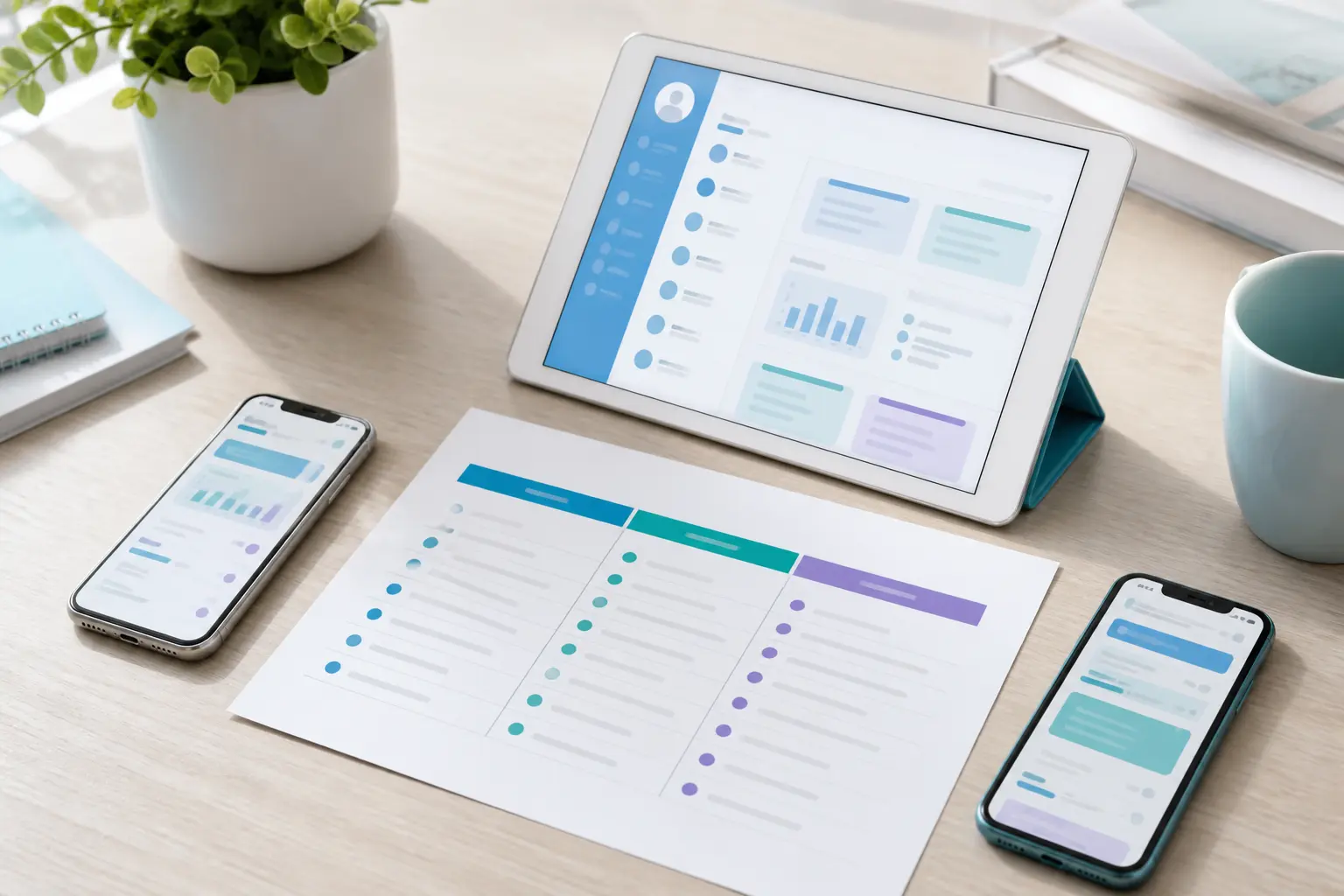
The five options below are not interchangeable winners. Each represents a different answer to the question, “What do we need this tool to do?”
The table keeps the options parallel before the article explains their different trade-offs.
Read the next rows as a decision map: each option answers a different family need and carries a different limit.
| Alternative | Best fit | Main strength | Important limit |
|---|---|---|---|
| Google Family Link | Younger children with Android or ChromeOS | Account supervision, app approval and basic time controls | Several controls do not apply fully on child iOS or open web |
| Bark | Families that want targeted safety alerts | Surfaces potential risks with context instead of a full activity stream | Alerts are not proof and device setup varies |
| Norton Family | Web, search and screen-time supervision | Rules, reports and content boundaries | Features vary by platform |
| FamiSafe | Families seeking a broader control set | Multiple control categories in one service | Verify current scope, permissions and privacy terms |
| Hoverwatch | A specific Android visibility need | Deeper visibility for a narrowly defined concern | Not a blocking-first replacement; higher privacy responsibility |
Use this table as a starting filter, not as a universal ranking. Verify current capabilities on the official product pages before paying.
The table is a filter, not a verdict. The sections below explain the trade-offs behind each role.
Google Family Link: Best for a Transparent Starting Point

This section focuses on the simplest transparent starting point, not on complete activity visibility.
Best fit: choose Family Link when visible account supervision on compatible Android or ChromeOS devices is enough.
Family Link is the clearest alternative when the family wants basic supervision connected to Google accounts and compatible Android or ChromeOS devices. Google lists tools for screen time, app approvals, content settings and device location in supported situations.
 Why it fits
Family Link is simple to explain and works well for account supervision, app approval, screen-time rules and supported Android or ChromeOS devices.
 Where it stops
Several controls do not apply fully to a child's activity on iPhone or the open web. It is not a complete message or social-media activity record, and filters are not guarantees.
The right choice depends on whether those limits answer the family’s actual question.
Bark: Best for Alert-Based Safety Monitoring

Bark takes a different approach. Its official documentation describes monitoring that scans supported content and sends an alert when it detects a potential concern. Parents receive context and guidance instead of a full stream of every message.
Alert-led model: review selected signals in context instead of browsing a complete activity stream.
| An alert can help with | An alert cannot prove |
|---|---|
| Deciding when to check context and start a conversation. | That the detected concern is complete, current or correctly interpreted. |
| Focusing attention on a selected risk instead of reading every message. | That every relevant event was detected or that no risk exists when no alert appears. |
 Who it suits
The model can fit a busy parent who wants a safety signal without manually reading a child's entire digital life. It can also suit an older child or teen when the family agrees on what is monitored and how an alert will be handled.
 How to interpret it
An alert may be useful, but it can be incomplete or mistaken. Check the context and speak with the child before treating it as a conclusion.
Bark’s setup also varies by device. Its Android documentation and iOS monitoring guidance describe different arrangements, including products or hardware used to work within Apple’s restrictions. Check the exact setup for the child’s device and country before choosing it.
Bark does not provide a universal replacement for every Qustodio control. It is strongest when the family values risk alerts and guided follow-up. It is a weaker fit if the main goal is a simple, local bedtime schedule with no content-monitoring layer.
Norton Family: Best for Web and Screen-Time Rules

Norton Family is a natural option for parents who want web supervision, search visibility, screen-time schedules and activity reports in one system. Norton’s official page lists support for child devices running Windows, Android and iOS, while also noting that not every feature is available on every platform.
 Platform reality
A parent dashboard may run on one device while a child control works only on another. Confirm app supervision, location, YouTube supervision and time limits on the actual child device.
 Family fit
Norton can suit a younger child or preteen whose main risks involve websites, screen time or distracting apps. Its visible House Rules model supports an open family conversation.
It does not solve every social-media or message-monitoring need. The official feature pages describe limits and platform exceptions, so do not assume that a report available on Android will appear in the same form on iOS. It is also worth checking how the family will recover the account and review old rules if the subscription changes.
FamiSafe: Best for Families Seeking Broader Controls

FamiSafe belongs on a comparison list for families looking for a wider parental-control toolkit, but it should not be selected from a name alone. Its official feature pages publish broad control categories, while the FAQ documents platform-specific limitations. A broad feature list does not tell you whether the controls fit your home.
Use three questions to evaluate it.
-
 Coverage Check every child device
Does the service cover every child device the family actually uses? Verify the child-side app and the parent dashboard separately.
-
 Scope Choose the narrow control
Does it offer the specific control you need without requiring unrelated permissions? Extra access should close a defined safety gap.
-
 Family fit Make the rules explainable
Can the child understand the rules and ask for an exception when the situation is reasonable? A workable setup supports conversation as well as control.
This option may make sense for a family that wants several controls managed from one parent account. It may be a poor fit if the setup becomes difficult to maintain or if the family only needs one narrow feature already available in the operating system.
Do not assume that broader means safer. More dashboards can create more data, more notifications and more settings to review. Confirm what the service stores, how long it keeps activity information and how an account can be closed before you move a child’s data into it.
Hoverwatch: Best for a Specific Android Visibility Need

Hoverwatch should be treated as a different kind of alternative. It is not a standard blocking-first parental-control app, and it should not be presented as the default choice for every family.
A parent may consider deeper Android visibility when a specific safety concern remains unanswered by transparent controls and conversations.
 Set the boundary
Keep the decision narrow, documented and consistent with applicable law, device ownership and family expectations. The least invasive tool that answers the question is usually the better starting point.
 Verify the fit
Confirm current Android compatibility and official product behavior before buying. Never infer that a feature works on iPhone simply because another app in this list does.
Editorial persona: Jasper Goldstein is a project-approved fictional expert profile, not an independently verified real person. This guidance was written and fact-checked by the editorial team; it is not a verbatim interview quotation.
The more detailed the signal, the more specific the reason should be. Define the safety question before enabling a feature, and set a review date so a temporary concern does not become permanent collection.

The privacy boundary matters as much as the device boundary.
Hoverwatch does not replace app blocking, child-account supervision or a family agreement. It is also not a reason to collect every available category of information. Define the safety question, explain what can be monitored when appropriate, limit access to the data and set a review and deletion point before installation.
The decision should remain narrow, explainable and reviewable.
Can You Replace Qustodio With a Free App?
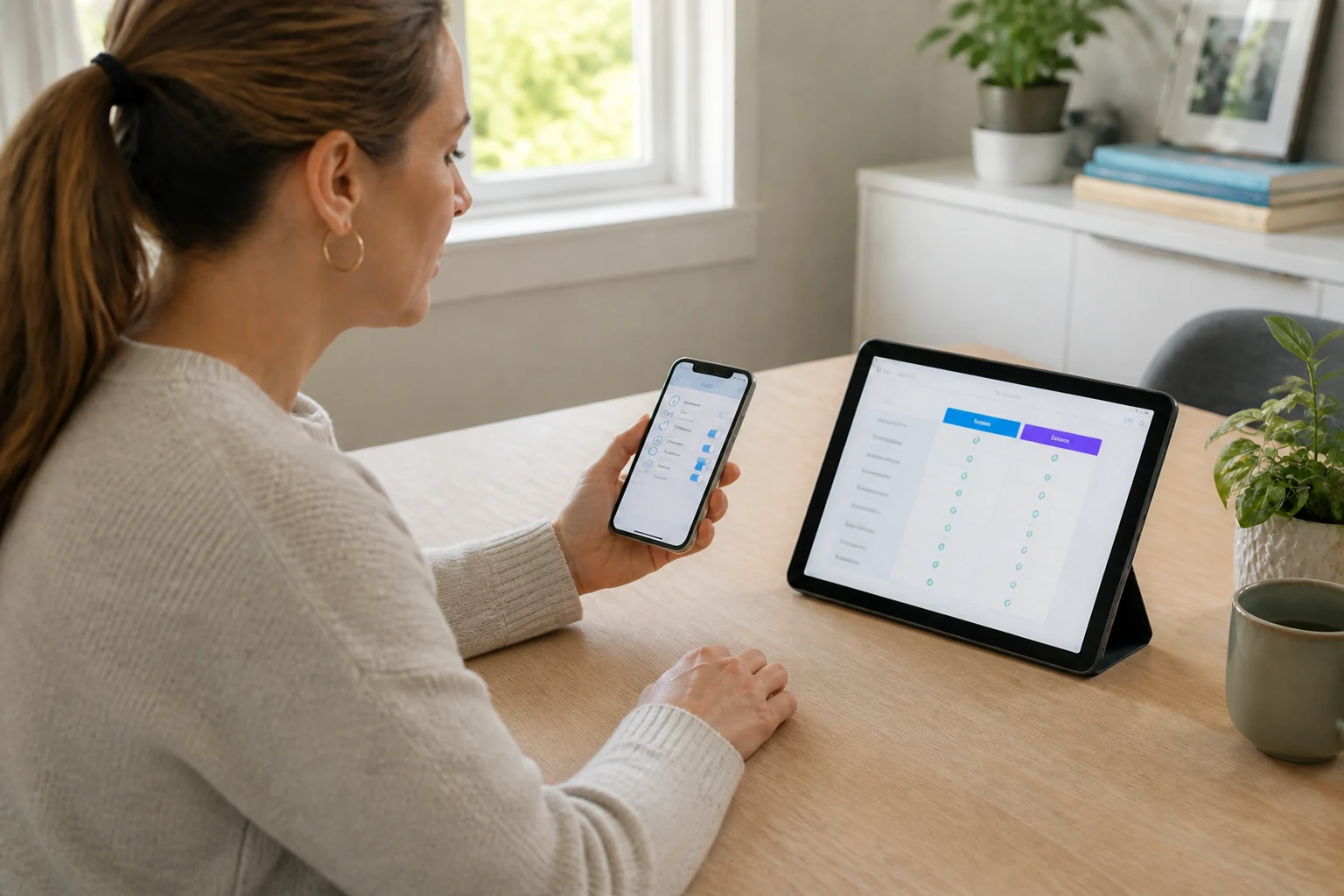
Sometimes the closest free alternative is not another subscription. It may be a combination of controls already available through the operating system, the child’s account and the services the family already uses.
 Integration and depth
A built-in control may handle screen time or app approval well but provide little cross-platform reporting. A free service may cover one device while a paid plan supports several.
 Cost of a weak fit
A bedtime schedule rarely justifies deep content monitoring. A family that needs reliable alerts across several accounts may find a free setup leaves an important gap.
Before switching, write down the controls that must work and the controls that would merely be nice to have. Then verify each one on the child’s actual devices.
| A built-in or free setup may be enough for | A paid alternative may be justified when |
|---|---|
| One device needs a bedtime schedule, app approval or a basic content rule. | The family needs broader device coverage, selected alerts or managed support. |
| The parent can maintain separate settings without extra work. | Separate controls leave a specific safety question unanswered. |
Keep the free-versus-paid decision tied to the defined control, not to the size of the feature list.
Are Qustodio Alternatives Safe and Private?

Safety is not only about whether an app blocks a website. It is also about permissions, account security, retention, access and the child’s understanding of the arrangement.
 Read the policy
Review the FamiSafe privacy policy and every alternative's collection categories, purpose, sharing, retention and account-deletion process. Check authentication and dashboard access before installation.
 Agree on use
Define who reviews information, what gets retained and when the family reassesses the tool. An alert about bullying may justify a conversation, not a search through unrelated messages. Set that boundary before any setup.
Editorial persona: Caroline Waters is a project-approved fictional expert profile, not an independently verified real person. This guidance was written and fact-checked by the editorial team; it is not a verbatim interview quotation.
Privacy is part of product fit. A tool that can collect more than the family can explain is not automatically safer; compare the purpose, permissions, access and deletion path before comparing feature counts.

Use that standard before comparing feature counts: the family should be able to explain the purpose, access and deletion path in one clear conversation.
 Permission scope
Check which device, account and data categories the app can access. Keep the setup limited to the safety question and avoid granting unrelated permissions just because they are available.
 Retention and exit
Set who can review information, how long it remains useful and what happens when the concern ends. A family should be able to revoke access and close the account without guessing.
The family should agree on the purpose before it agrees on the settings. For teenagers, transparency deserves special attention: a visible agreement gives the child a clear explanation of what is collected and why, while a secret monitoring setup can create a separate trust problem even when the original concern is real.
Our guide to privacy risks in parental-control apps explains why permissions, distribution and retention deserve review before installation.
Transparency check: the child should understand what is collected, why it is collected and when the arrangement will be reviewed. Reassess the setup as the child’s age, device mix or safety concern changes.
The safest setup is one the parent can explain and the child can understand. Our guide to finding hidden apps on Android covers a narrower device-visibility question when that is the actual concern.
How Should You Choose and Set Up the Replacement?

Start with the smallest useful change. If the problem is bedtime gaming, test a schedule or app limit before adding content monitoring. If the concern is a specific online risk, define what evidence would help you respond and what information would be irrelevant.
Check the device matrix. Test the parent app, child app, browser dashboard, notifications and account recovery on the actual phones or tablets. A mixed Android/iPhone household should test both sides before cancelling the current service.


Tell the child what the rules are when transparency is appropriate. Explain the purpose, the categories being monitored, who can see the information and when the arrangement will be reviewed.
Review whether notifications are useful, the device remains usable and the family can maintain the settings. If the tool creates more noise than safety value, reduce the scope or choose a simpler option.
Finally, plan the exit. Remove old permissions, cancel the subscription, delete stored information where possible and record rules that need to be rebuilt. A replacement is not complete until the old access has been closed.
-
 Define the need Step 1
Write down the safety question before enabling another feature. A narrow question produces a narrower, easier-to-review setup.
-
 Check devices Step 2
Test the parent and child devices, browser, notifications and account recovery on the exact hardware your family uses.
-
 Explain the rules Step 3
Tell the child what is monitored when transparency is appropriate, who can see it and when the arrangement will be reviewed.
-
 Run a pilot Step 4
Check whether alerts are useful, the device remains usable and the family can maintain the settings without constant repair.
-
 Close the old access Step 5
Remove permissions, cancel the old service and delete information where possible before treating the switch as complete.
Use the result to reduce scope before adding another monitoring feature.
Final Verdict: Which Alternative Is Right for You?
Choose by the problem you need to solve, not by the size of the feature list.
The useful boundary is between transparent controls and targeted visibility.

 Transparent controls
Choose a visible, blocking-first tool for app approval, screen-time rules or content boundaries. Use the narrowest scope that solves the problem.
 Targeted visibility
Consider deeper visibility only for a defined safety concern. Set a review date and close the collection when the need ends.
Choose Family Link for basic Android or ChromeOS supervision, Bark for targeted safety alerts, and Norton Family for web and screen-time rules. Consider FamiSafe after checking current device coverage and privacy terms. Consider Hoverwatch only when a specific Android visibility question remains unanswered by less invasive tools.
Before switching, verify the child devices, permissions, review date and removal process.
Frequently Asked Questions
-
There is no universal free replacement. Start by checking built-in account, screen-time and app-approval controls on the child's device. Choose a paid alternative only when you need broader coverage, reporting or support.
-
That depends on the feature, not only the brand. Family Link has meaningful limits on a child's iPhone activity, while other services use different iOS arrangements. Verify the exact child-device feature before subscribing.
-
Possibly, but first identify the failing setting. A simpler tool may solve the problem, while a broader replacement could add even more maintenance. Test the new setup before cancelling the old one.
-
No. A schedule, content filter, targeted alert or family agreement may answer the concern with less intrusion. Define the safety question first and choose the narrowest effective response.
-
Record rules you need to rebuild, check account recovery, remove old device permissions and review the provider's deletion process. Keep only information with a defined safety purpose.
You May Also Like
 Tools & Apps
 Tools & Apps
 Tools & Apps
 Tools & Apps
 Tools & Apps
 How-To & Guides
Name the mismatch
Write down what Qustodio does not solve before comparing replacements. A specific problem produces a better shortlist than a longer feature list.
Check the device
Test the exact child phone, tablet, browser, and parent device. Platform labels do not guarantee identical controls.
Compare the signal
Decide whether you need blocking, schedules, alerts, or deeper visibility. Choose the smallest signal that answers the safety question.
Read the limits
For every alternative, write down one thing it does not do. That boundary is often more useful than another feature claim.
Interpret alerts
An alert is a prompt to check context and talk, not proof that a serious event occurred. Build review into the family plan.
Check platform gaps
Confirm which Norton controls work on Windows, Android, and iOS before relying on a mixed-device setup.
Verify before paying
Confirm FamiSafe's current features, supported devices, pricing, and privacy terms on its official pages before subscribing.
Use the narrowest scope
Deeper Android visibility needs a specific purpose, clear boundaries, and a plan for review and deletion.
Do not overbuy
A built-in schedule may solve a bedtime problem. Do not add content monitoring when a simpler control answers the need.
Review retention
Read what the service stores, why it stores it, and how to delete the account before moving family data into a new app.
Plan the exit
Record rules to rebuild, remove old permissions, and close the previous account. Switching is incomplete while old access remains.
Choose conditionally
Recommend the alternative by family need, device mix, and privacy boundary. There is no universal winner.
Free is not complete
A free tool can be enough for one narrow need, but check platform coverage and the work required to maintain separate controls.