
















How to Detect a Keylogger on Android: 5 Signs and How to Check Each One

To detect a keylogger on Android, check permissions, not battery drain or lag: both have ordinary causes.
If someone close may have installed it, read the safety section before you open settings, scan or delete anything. Otherwise, look at which apps hold Accessibility, which keyboards are enabled and which apps are device admins, run Google Play Protect, and remove only apps you can’t account for.
How a Keylogger Reads What You Type on Android
Knowing how to detect a keylogger starts with knowing how one reaches what you type. A keylogger is a program that records what you type; on a phone, that means the on-screen keyboard.
A hardware keylogger is a plug-in device that sits between a computer and its keyboard; this article is about software on the phone.
On Android, an app cannot read what you type in other apps on its own. It needs one of a few routes: an Accessibility service, which can read the screen and track your interactions with apps; a replacement keyboard; or, for the content of incoming messages, notification access.
How It Gets Onto a Phone
Such an app can get onto a phone when someone has the unlocked phone in hand, when it comes from outside Google Play, or when a harmful app talks you into turning on a setting such as Accessibility.
On Android 13 and later, some sensitive settings, Accessibility among them, stay restricted for some apps until you allow them.
Check permissions the way you would check who has a key to your home: an app you can name and explain is fine; an app you can’t explain is where to start.
Editorial persona: Gilbert McNamara is a project-approved fictional expert profile, not an independently verified real person. This guidance was written and fact-checked by the editorial team; it is not a verbatim interview quotation.

How It Differs From a Parental-Control App
A keylogger and stalkerware differ from a parental-control app less in the access they use than in whose phone it is and whether its user knows.
Monitoring another adult’s phone without that adult’s consent can be illegal: in the US, for example, federal law (18 U.S.C. § 2511) restricts intercepting someone’s communications unless a party to them consents, and state laws differ. This is general information, not legal advice.
Parental-control apps, Hoverwatch among them, use the same kinds of permissions; the legitimate use is on your own phone or a minor child’s phone you manage, with its user’s knowledge.
Our guide to what monitoring apps collect and which permissions they need covers that side. Every route above needs a permission or a setting you can see, and the signs below show where.
5 Signs of a Keylogger on Android
Feeling watched is unsettling; the checks take minutes. A warning from Play Protect or a security app is also a reason to run them.
Each sign ends with a verdict. Strong sign: it points to an app or setting you can find and remove. Weak sign: common on phones with no monitoring app; it only tells you to run the checks. Reason to check, not proof: it points to a problem with your accounts or phone, not to an app.
Menu paths differ by maker and Android version, so the ones below are examples. If someone close may have installed an app, read “Before You Delete Anything” before opening these settings.
1. Someone Knows Things You Only Typed
What you notice: someone repeats something you wrote only in a message or a search, or one of your accounts shows a sign-in or a password change you didn’t make.
What it can mean: an app on the phone reads what you type or the messages you get, or someone has the password to that account.
What else explains it: the same Google account signed in on a tablet or computer someone else uses, a password you use on more than one site, or a recovery email or phone number that someone else controls.
Where to check: the devices signed in to your Google account (for example, Google Account > Security & sign-in > Your devices) and the login activity of the affected account; look for devices and sessions you don’t recognize.
Verdict: reason to check, not proof. Run every check below, but on its own it does not point to an app.
2. An App You Don’t Recognize Has Accessibility Access

What you notice: an unfamiliar name in the list of Accessibility apps or services, or a persistent notification from an app you don’t remember installing.
What it can mean: Accessibility lets an app read what is on the screen and interact with apps on your behalf, across apps. When you turn it on for an app, Android asks whether to allow it full control of your device and says that full control is appropriate for apps that help with accessibility needs, but not for most apps. The wording can differ by Android version.
What else explains it: screen readers are the intended use, and Google Play also lets other apps use Accessibility if they disclose it, such as:
- password managers
- launchers
- antivirus
- automation apps
Where to check: for example, Settings > Accessibility on a Pixel or a Samsung phone; on a Samsung phone, tap Installed apps for the list of accessibility apps you installed. On other phones and versions that list may have another name.
Verdict: strong sign. An app you cannot name, with Accessibility turned on, is the first thing to look at.
3. A Keyboard You Didn’t Install, or One That Changed
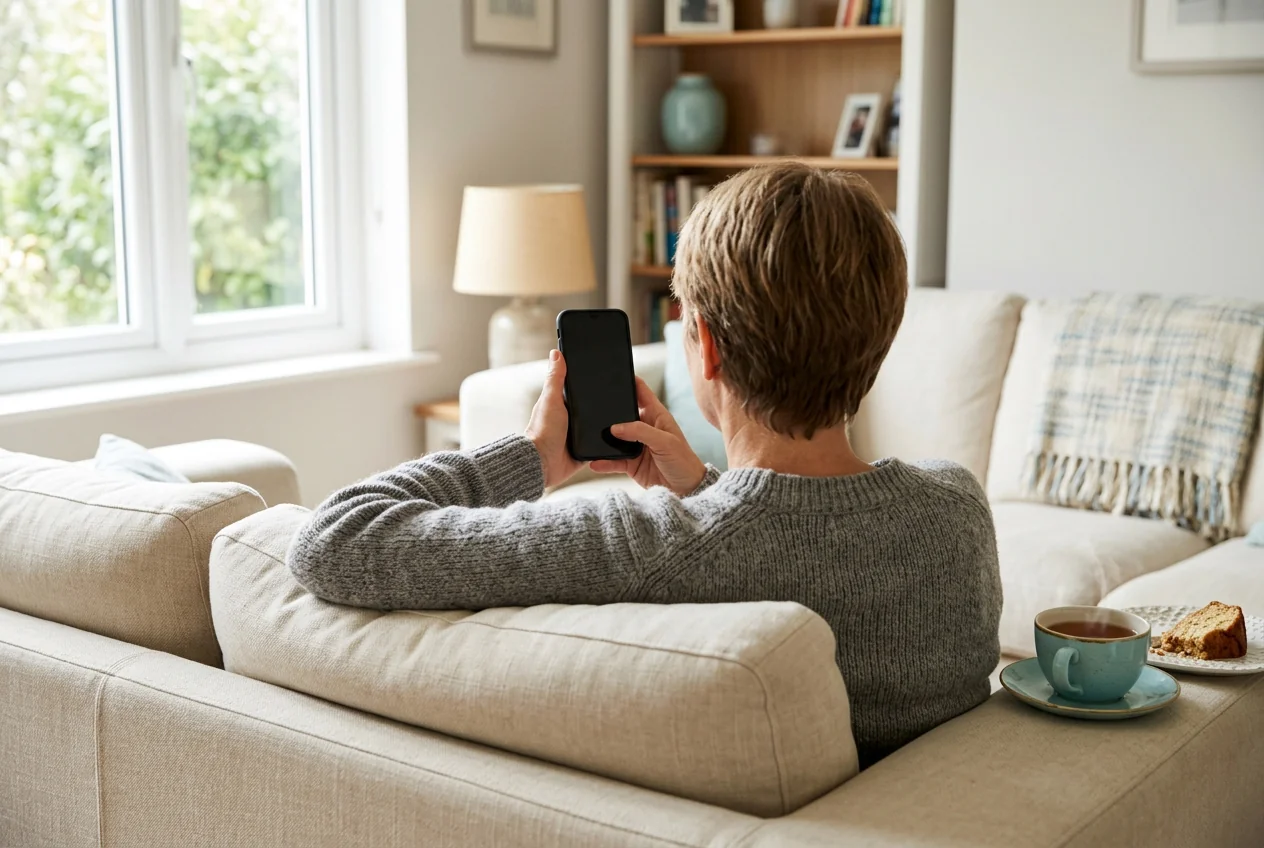
What you notice: a keyboard in the list of on-screen keyboards that you didn’t add, or your default keyboard switched to a different one.
What it can mean: a keyboard app handles everything typed through it. After you install a keyboard, you select it in the system settings and it works across the entire system, including when you type passwords.
What else explains it: the keyboard your phone came with (Samsung Keyboard on Samsung phones, Gboard on some others), or a new language added to the keyboard you already use.
Where to check: for example, Settings > System > Keyboard > On-screen keyboard, or Settings > General management > Keyboard list and default on a Samsung phone; the path differs by maker and version.
Verdict: strong sign when the keyboard is one you can’t name; a new language on your usual keyboard is not a sign.
4. Device Admin, Notification Access or “Install Unknown Apps” Turned On for Something Unfamiliar
What you notice: an unfamiliar app listed in Settings > Apps with no home-screen icon, or one under Special app access:
- device admin apps
- notification access
- install unknown apps
What it can mean: these permissions don’t record keystrokes on their own. A monitoring app can use them:
- to stay installed (a device admin app blocks a plain uninstall)
- to read the content of incoming messages (notification access)
- to install more apps
What else explains it: work or school tools (a work profile is managed by the organization); a browser or file manager may hold “install unknown apps” after a download you made. Apps that came with the phone also appear in these lists, and Google says some of them can’t be deleted, only disabled.
Where to check: for example, Settings > Apps > Special app access; the name and place of this menu differ by maker.
Verdict: strong sign for an app you can’t identify; the same permission held by an app you can name is not a sign.
5. Battery Drain, Heat and Data Use You Can’t Explain
What you notice: the battery drains faster than before, the phone runs warm when you are not using it, or mobile data use grows.
What it can mean: an app working in the background and sending data.
What else explains it: a recent system update (Google says it is normal for the battery to drain a little more after one) or a busy downloaded app such as a game or a video app. A hot phone also drains faster, even when you are not using it.
Where to check: battery use by app and data use by app, both in Settings, for example under Battery and Network & internet on a Pixel. They are most useful when the same unfamiliar app sits near the top of both lists.
Verdict: weak sign; on its own it does not point to a keylogger. See the wider signs that a phone is being tracked.
Signs at a Glance: Summary of What Each Sign Tells You

Android monitoring signs differ in how much they tell:
| Sign | Verdict | Where to check |
|---|---|---|
| 1. Someone knows what you typed | Reason to check, not proof | Devices signed in to your accounts |
| 2. Unknown app with Accessibility | Strong sign | Accessibility, installed apps |
| 3. Keyboard you didn’t install | Strong sign | On-screen keyboard list |
| 4. Unknown app with device admin, notification access, or install rights | Strong sign | Special app access |
| 5. Battery, heat, data | Weak sign | Battery and data use by app |
How to Find a Keylogger on Android With a Scan: What Each Tool Finds and Misses

Settings show what an app may do; a scan looks for apps known to be harmful. Use both; neither is a clean bill of health.
Play Protect can warn about, turn off, or remove an app by itself, and security apps may offer to remove one right away, so if someone close may have installed it, read the safety section below first. Use them in this order: Play Protect, then Safe Mode, then a mobile security app.
Google Play Protect

What it finds: Google Play Protect checks apps from Google Play and scans the phone for potentially harmful apps from other sources. It warns you about them and may turn off or remove a harmful app; it can remove one automatically and, in most cases, sends a notification that the app was removed.
What it misses: apps that Google’s policy does not class as harmful. In AV-Comparatives’ stalkerware test of September 2025, Play Protect detected 53% of the 17 stalkerware apps tested.
Why: it judges apps against Google’s own policy, not against whether you know the app.
Where: for example, Google Play Store > profile icon > Play Protect. If the screen offers a scan, run it.
Safety: it may remove an app without asking; see the safety section first.
When to use it: first, after the permission checks; a result with no warnings does not replace them.
Safe Mode

What it finds: Safe Mode restarts the phone with the apps you downloaded turned off. If a symptom stops in Safe Mode, that points to a downloaded app.
What it misses: it does not name the app.
Why: it switches downloaded apps off; it does not inspect them.
How to start it: the buttons differ by maker and model; your maker’s help page lists them. Android’s help then suggests removing recently downloaded apps one by one, restarting normally after each.
Safety: removing an app here is still a removal; read the safety section first.
When to use it: to test whether a downloaded app causes a symptom, and as a removal aid in step 4 below.
A Mobile Security App

What it finds: some mobile security apps detect stalkerware and commercial monitoring apps. Choose a reputable, independently tested mobile security app from Google Play.
What it misses: detection differs between apps and over time, so no scan result is a guarantee. In AV-Comparatives’ September 2025 test of 13 Android security apps against 17 stalkerware apps, detection ranged from 53% to 100%; that is a result for that sample at that time.
Why: detection depends on which apps the vendor has classed as stalkerware or monitoring tools.
Safety: most of the apps in that test recommended immediate removal without explaining that it may alert the person who installed the app; read the safety section before you agree.
When to use it: as a second opinion after Play Protect.
Before You Delete Anything: If Someone Close May Have Installed It

If a check or a scan found an app and someone close to you may have installed it, pause here before you remove it or change any passwords. Finding it can feel frightening, and wanting it gone at once is understandable.
Removing a monitoring app, letting a scan remove it, or making other significant changes, such as changing passwords or signing out other sessions, may be noticed by the person who installed it or who has access to your accounts. The FTC warns that an abuser who uses stalkerware to monitor you may escalate their abuse if they suspect you’re cutting off their access to your phone.
Treat what you found as information first. A record made before anything changes keeps your options open, whether you decide to remove the app now, later, or with help from an advocate.
Editorial persona: Betty Mitchell is a project-approved fictional expert profile, not an independently verified real person. This guidance was written and fact-checked by the editorial team; it is not a verbatim interview quotation.

Before changing anything, write down what you found: the app’s name, which permissions it holds, and the date. A photo of the screen taken with another device works. Keep the note somewhere the other person cannot reach, and don’t type it into the phone you are checking.
Plan from a device the other person has not had access to. The National Domestic Violence Hotline offers help with safety planning, and the Coalition Against Stalkerware offers guidance and a list of support organizations.
If you are in immediate danger, call 911 in the US or your local emergency number. When it is safe to go ahead, remove the app in the order below.
How to Remove a Keylogger From Android, Step by Step
If someone close may have installed the app, read “Before You Delete Anything” before you start. Otherwise, work through these steps in order; each one says what it doesn’t fix.
- Identify the app. Note its name and the permissions it holds, for example in Settings > Apps > the app > Permissions, and find out what it is. An app from your phone’s maker or a tool you use stays. A work or school profile, or an app your employer or school installed, stays too; in our view, raise it with them instead of removing it. Doesn’t fix: anything yet; it gives you what the next steps need.
- Turn off its access. Turn off the app’s Accessibility access and its notification access. Doesn’t fix: the app is still installed.
- Switch keyboards. Switch to the keyboard your phone came with and remove the extra keyboard. Doesn’t fix: other access the app may still hold.
- Remove device admin, then uninstall. Remove its device admin rights under Special app access, then uninstall it. If Uninstall is grayed out, device admin may still be on. If the app resists or comes back, restart in Safe Mode and try uninstalling it there; Samsung’s help describes removing apps in Safe mode, while Google’s Pixel help removes them after restarting normally. Doesn’t fix: anything typed before the removal.
- Scan and update. Run Play Protect again and install pending Android and security updates. Doesn’t fix: passwords already captured.
- Reset if you can’t remove it. If the app cannot be removed, or you cannot tell what it was:
- Back up photos and contacts (not app backups).
- Then factory reset the phone.
- Set it up as new.
Doesn’t fix: accounts whose passwords were already captured.
- Change passwords from another device.
- Change the passwords you typed on this phone from a different device you trust, starting with your Google account and email, then banking. Do it after step 5 if you removed an app you could identify; if you are not sure, after the reset of step 6.
- Sign out of other sessions.
- Turn on 2-Step Verification.
Doesn’t fix: an app still on the phone, which is why this step comes last.
Deleting an app’s icon from the home screen does not remove the app: on a Pixel, “Remove” takes an app off your Home screen only, while “Uninstall” takes it off your device.
What to Do Next, Depending on What You Found

Pick the case that fits.
- Nothing found, but the doubt stays: repeat the Accessibility and keyboard checks in a few weeks and look at your account sign-ins again.
- You removed something: our guide to keeping the phone protected after a cleanup covers updates, app sources, and accounts.
- You are a parent checking a child’s phone: see a parent’s guide to apps hidden on a child’s phone.
- Someone close may be involved: go back to “Before You Delete Anything” before you change anything else.
In our view, if you want to detect a keylogger on Android, start today with the Accessibility and keyboard lists.
FAQ: Questions Android Owners Actually Asked
-
Not necessarily. A warning that names an app with Accessibility access is a reason to look, not proof: password managers, launchers, antivirus, and automation apps hold it for ordinary reasons, and Google Play allows it with disclosure. Look at which app raised it and which app or setting it named. If it named an app you recognize and use, that explains it. If it named one you can't account for, or named none, run the Accessibility and keyboard checks from the signs above.
-
It is possible, but you can't assume it. According to the Coalition Against Stalkerware, stalkerware usually needs physical access to the phone and a way to unlock it, so someone who had your phone and its unlock code could install an app and turn on its permissions. Without the code, that is usually much harder. Some makers offer a mode for repairs, such as Maintenance mode on supported Samsung phones and Repair mode on supported Pixel phones, which can keep your personal data out of reach while the phone is away. After any repair, run the same checks: Accessibility, keyboards, and Special app access.
-
For an app that records typing, a reset can be enough: a factory reset erases the apps on the phone, and the FTC says a full factory reset may remove stalkerware. It is not a guarantee, and the Coalition Against Stalkerware rates buying a new phone as the most effective option. Two things can bring it back: restoring apps from a backup of the old setup, and keeping passwords that were captured before. Set the phone up as new, reinstall apps from Google Play, and change the passwords from another device.
-
On Android, the keyboard is itself an app, so protection comes more from which keyboard and apps you trust than from a separate anti-keylogger app. Keep only a keyboard you know enabled, such as the one your phone came with, check the Accessibility list for apps you can't explain, and keep Play Protect on. A password manager's autofill can fill in login fields, so you type less. Turning on 2-Step Verification (two-factor authentication) on your bank and email adds a layer in case a password is stolen. In our view, a separate app category is not needed for this.
-
It may or may not. Some security apps flag commercial monitoring apps as stalkerware and some don't; in independent testing, detection differed between products. So an empty result does not settle it. Check the lists yourself: Accessibility, the on-screen keyboards, and Special app access. Google Play's rules require monitoring apps offered there to show a persistent notification and their own icon; these are rules for apps published on Google Play, so an app installed from elsewhere is not covered by them. If someone close may have installed it, read "Before You Delete Anything" first.
All information in this article is provided for informational purposes only.
You May Also Like
 Privacy & Security
 Privacy & Security
 Privacy & Security
 Privacy & Security
 Privacy & Security
 How-To & Guides
Three Routes
An Android app cannot read what you type in other apps by itself; it needs an Accessibility service, a replacement keyboard, or notification access.
Reading the Verdicts
A strong sign points to an app or setting you can find and remove; a weak sign is common on phones without any monitoring app.
Check Your Sessions
Check the devices signed in to your Google account and the account's login activity for a device or session you don't recognize.
Full Control Warning
When you turn Accessibility on, Android asks whether to allow full control of your device, which suits accessibility helpers but not most apps.
One Keyboard You Know
A keyboard you select works across the entire system, passwords included, so one in the list that you can't name deserves a closer look.
Permissions That Help It Stay
These permissions do not record keystrokes themselves; a monitoring app can use them to stay installed, read incoming message content, or install more apps.
Compare Both Lists
Battery and data use by app help most together: look for the same unfamiliar app near the top of both lists in Settings.
Three Strong Signs
Three of the five signs are strong and point to an app or setting you can find; the other two only call for more checks.
Use Both
Settings show what an app may do; a scan looks for apps known to be harmful. Use both; neither is a clean bill of health.
Note It First
Before changing anything, write down the app's name, its permissions and the date, and keep the note where the other person cannot reach it.
Passwords Come Last
Passwords typed before the removal are still at risk, so change them from a different device you trust, starting with your Google account and email.
Keep Checking
If nothing turned up but the doubt stays, repeat the Accessibility and keyboard checks in a few weeks and look at your account sign-ins again.