
















BYOD Security Policy for Small Business: A Practical Template

A BYOD policy template lets a small business agree on rules for personal phones at work before a problem forces the question, not after. It sets the security minimums, access limits, wipe consent, costs and what happens when someone leaves.
Picture a phone left in a taxi with the client inbox open. Without a written rule, the next hour becomes an argument about privacy and trust instead of a procedure: can the company erase it, photos and all? This guide sets that boundary before a phone goes missing.
What a BYOD Policy Is, and Why a Small Team Needs One Now

A bring your own device (BYOD) policy is the written agreement on how employees may use their own phones for work and what the business may do on those phones.
If your staff already read work email, chat, and sign-in codes on their own phones, the policy is overdue, not early. Agree on the rules now, before the first lost phone.
A BYOD security policy protects two things at once: the company’s data and the employee’s private life on the same device. Putting this off is understandable: it can feel like a statement of distrust. A clear policy does the opposite, because it says first what the company will not touch.
A phone rule reads as distrust when it is vague. When it names what the company will not look at, people see the limit before they sign.
Editorial persona: Victoria Bryan is a project-approved fictional expert profile, not an independently verified real person. This guidance was written and fact-checked by the editorial team; it is not a verbatim interview quotation.

Some roles are better served by a company phone; that choice is the fourth approach below. If the phones hold health records or other regulated data, sector rules apply on top of this policy, so check with your regulator.
The question that decides the rest is how much control over a personal phone you need for the data on it. Once you know what is on the phones, the four ways to protect that data line up from the lightest to the heaviest.
4 Ways to Protect Company Data on Personal Phones

The four approaches run from the least control to the most, each with a verdict: “works” means it keeps company data protected when a phone is lost or an employee leaves, inside what the employee agreed to in writing. Approaches 2 and 3 are the familiar MDM or MAM question: mobile application management (MAM) covers the work apps, mobile device management (MDM) the whole phone. They also combine, for example app-level controls on personal phones and a company phone for one role.
1. Written Rules and the Phone’s Own Security

Protects: Written rules set the expectations and rely on the phone’s own security. Current iPhone and Android phones already have a screen lock, automatic updates, device encryption that the passcode protects, and the owner’s own remote erase through Find My on iPhone or Find Hub on Android.
Doesn’t protect: The company has no tool to check that the rules are followed or to remove its own data from the phone. The employee is the one who can erase it.
What it asks of the employee: No management software is installed. The employee keeps a passcode, leaves updates on, and reports a lost phone.
Why: Written rules are an agreement, not a control. In our view, they are the honest starting point for the smallest teams, not a lesser option.
Verdict: Works for a few people whose phones hold only work email and chat, if you trust them to follow it; in our view, not enough once client or payment data sits on the phones.
2. App-Level Controls: Work Profile and App Protection
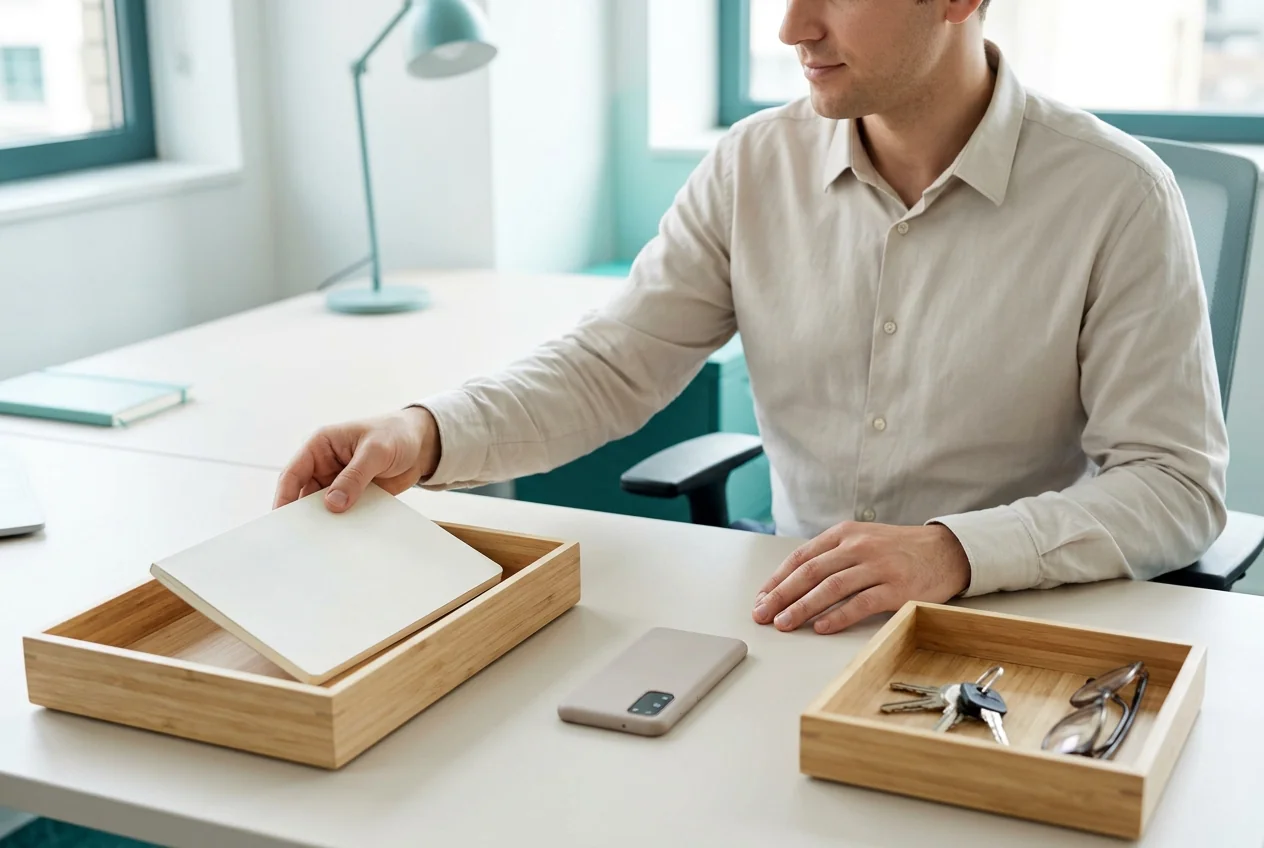
Protects: The work apps and their data only. On Android, a work profile keeps work apps and data in a separate space on the phone. App protection policies (MAM) can require a PIN and remove only the work data when someone leaves or loses the phone. On iPhone, User Enrollment separates managed work data from personal data.
Doesn’t protect: Anything outside the managed apps. App-level control also needs a business email or identity platform that offers these controls; the section on what to turn on shows which plans include them.
What it asks of the employee: The work apps and, on Android, the work profile. The admin does not see personal apps, photos, or messages.
Why: App-level control draws the line around the company’s data, not around the device. This is the MAM side of the MDM or MAM question.
Verdict: In our view, this is a sensible starting point for most personal phones: it protects the work data and leaves the rest of the phone alone.
3. Full Device Management on a Personal Phone

Protects: The whole device, where the platform allows it. On an iPhone under Device Enrollment, MDM can enforce a passcode and updates and erase the whole phone. On Android, a personal phone is managed through a work profile; full management is for company-owned phones.
Doesn’t protect: The employee’s trust. A full wipe removes personal photos and messages along with the work data.
What it asks of the employee: Enrolling the whole phone. The admin sees device details and, depending on the platform and the tool’s settings, a list of installed apps. Apple and Microsoft state that the admin cannot see a personal phone’s location; the vendors state that it cannot read personal email, photos, or messages.
Why: In our view, full device management is a tool built for company devices, applied to a phone the employee paid for.
Verdict: When the data on a phone cannot be lost, give that person a company phone rather than fully managing a personal one. If you keep this approach anyway, use it only with the employee’s signed acknowledgment and a separate wipe consent before any full wipe.
4. A Company Phone for the Roles That Need Full Control

Protects: The whole device, which the company can fully manage because it owns it. It also gives a clean exit, since the phone is handed back, and a clear line between work and private life.
Doesn’t protect: The budget: the device and the plan are the company’s cost. A company phone also does not keep work email off personal phones unless the policy says so.
What it asks of the employee: Carrying a second phone, or using the company phone for work only.
Why: When a role needs device-level control or visibility, it belongs on a device the company owns, with written notice. Some states require employers to give employees written notice before electronic monitoring.
Verdict: Choose it for the roles whose phones hold client data or need full control; keep app-level controls for everyone else.
On a company-owned Android phone, a business can use monitoring software such as Hoverwatch, made by the publisher of this blog, which logs calls, texts and the phone’s location, once the employee has been told in advance, in writing, and has acknowledged it.
The vendor does not describe it as MDM or MAM, and its acceptable use policy rules out its use on a personal phone, even with consent; for the wider choice, see our guide to choosing monitoring software for company-owned devices.
Side-by-Side Comparison of the Four Approaches, and Which One Fits

Here are all four in one view:
| Approach | What it protects | What it asks of the employee |
|---|---|---|
| 1. Written rules and the phone’s own security | The employee’s own screen lock, updates, and remote erase | A passcode, updates, and reporting a lost phone |
| 2. App-level controls (work profile, MAM) | Work apps and their data, removable on their own | Using the work apps; personal apps stay unseen |
| 3. Full device management (MDM) on a personal phone | The whole device where the platform allows it; a full wipe is possible | Enrolling the whole phone under the signed acknowledgment; a full wipe only with the wipe consent |
| 4. A company phone | The whole device, which the company can fully manage; a clean exit | Carrying a second phone |
In our view, by situation:
-
 Situation 1
A handful of people, work email and chat only: written rules and the phone's own security.
-
 Situation 2
Client files or shared accounts on the phones: app-level controls.
-
 Situation 3
One role whose phone holds data you cannot lose: a company phone for that role, not full management of a personal phone.
-
 Situation 4
Remote or hybrid staff: the same split; on the tools side, see our guide to remote employee monitoring software and personal devices.
In our view, whichever approach you pick, it holds only if it is written down and signed; here is the text.
The BYOD Policy Template: Four Parts to Copy

The sample clauses below come in four parts. Copy them, replace the bracketed fields such as [Company Name], [Policy Owner], and [Date], and delete the clauses for the approaches you do not use; clauses 2.6, 3.1, and 3.5 say in brackets which approach each line belongs to.
Have the final text reviewed for your state before anyone signs; it is a starting point, not legal advice.
Part 1: Scope, Eligible Devices and Security Minimums

[Company Name] Personal Device Policy, effective [Date]. In this policy, “the Company” means [Company Name] and “you” means the employee.
1.1 Purpose and scope. This policy covers personal phones and tablets you use to reach [Company Name] email, chat, files, or accounts. It does not cover anything else on your device.
1.2 Participation. Using a personal device for work is voluntary. The Company offers [a company phone / desktop-only access] to anyone who prefers not to.
1.3 Eligible devices. Your device must still receive security updates from its maker. Jailbroken or rooted devices are not allowed.
1.4 Security minimums. Keep a screen lock with a passcode or biometrics, keep automatic updates on, and use multi-factor authentication on work accounts. Install apps only from the official app stores.
1.5 Lost or stolen device. Report a lost or stolen device to [Policy Owner] within [24] hours.
1.6 Who to ask. Questions about this policy go to [Policy Owner] at [contact].
Why these clauses: the minimums are settings and rules, not management software. Multi-factor sign-in can use an authenticator app or a hardware security key, so 1.4 does not force a work app onto anyone’s phone.
Part 2: What the Company Can Access, and What It Won’t

2.1 What the Company can access. The Company can access only your work accounts and work data, plus the device details its tools show by default (such as model, operating system version and whether a passcode is set, and, with some tools, the serial number or part of the phone number). Under full device management, it can also see the items listed in 2.6.
2.2 What the Company will not access. The Company will not look at your personal email, messages, photos, contacts, browsing history or the content of your personal apps.
2.3 No monitoring or location software. The Company does not install monitoring or location-tracking software on personal devices enrolled under this policy, and it does not use location data from your device.
2.4 No personal passwords. The Company will never ask for the passcode to your personal device or the passwords to your personal accounts.
2.5 If tools change. The Company will tell you in writing before any change in what it can access on your device.
2.6 What the tools manage [If you use app-level controls:] The Company manages only the work apps.
2.6 [If you use full device management:] The Company can see the device details listed in 2.1 and [the list of installed apps, if its tool collects it], with location reporting switched off in its settings. It can erase the whole device only under clause 3.3.
Why this part matters: in our view, saying first what you will not look at is what turns a policy into something people sign. Several states also bar employers from requiring access to employees’ personal online accounts, which clause 2.4 respects.
Before anyone signs, open your tool’s admin console and check what it actually collects. If it shows more than clause 2.1 promises, switch those settings off or rewrite the clause.
Editorial persona: Benjamin Yates is a project-approved fictional expert profile, not an independently verified real person. This guidance was written and fact-checked by the editorial team; it is not a verbatim interview quotation.

What the tools can see depends on the approach. App-level controls reach the managed work apps; full device management also reaches device details and, where the tool collects it, the list of installed apps.
Part 3: Lost Phones, Remote Wipe and Leaving the Company

3.1 Lost or stolen device [If you use app-level controls or full device management:] After the report of 1.5, the Company removes its work data and access from the device.
3.1 [If you use written rules only:] After the report of 1.5, the Company cuts access to your work accounts; you must remove the work accounts, you may erase the device if you choose, and you confirm the removal in writing.
3.2 Selective removal first. Wherever its tools allow it, the Company removes only work accounts and work data, not your personal data.
3.3 Full wipe only with separate consent. The Company will erase your whole device only if you have signed the separate wipe consent in the agreement. It will tell you before it does, unless the device is lost or stolen.
3.4 Back up your own data. You are responsible for backing up your personal data; the Company is not liable for personal data lost in a wipe you agreed to.
3.5 Leaving the Company. On your last day, you remove work accounts and apps from your device, with [Policy Owner] present if you agree. Your confidentiality duties continue after you leave.
Why this part: a selective removal keeps the employee’s photos safe, so a full wipe needs its own signature on the form below.
Part 4: Costs and Work Outside Working Hours

4.1 Who pays. The Company pays [a monthly stipend of [Amount] / a share of your phone bill on request] to employees who use a personal phone for work.
4.2 State rules (a note for you; delete it from the copy). Some states, California among them, require employers to reimburse work expenses; in California that includes a reasonable share of a personal phone bill used for work. Under federal law, work costs the employer requires an employee to bear may not push pay below the minimum wage.
4.3 Damage and repair. Your device remains your property, and repairs are your cost unless [Company Name] agrees otherwise in writing [or your state requires the Company to pay].
4.4 Work outside working hours. You are not expected to read or answer work messages outside your working hours unless you are on call. If you are paid hourly, time you spend on work messages is work time and is paid.
For salaried exempt staff, the pay rules differ, so ask whoever reviews the policy how 4.4 applies to them.
Why this part: money and evenings are what staff ask about first, and writing them down ends the argument early. Still, the policy needs signatures, and the form below collects them.
BYOD Agreement: The Signature and Wipe-Consent Form

Acknowledgment. I have read the [Company Name] personal device policy dated [Date] and agree to follow it[, including the enrollment of my device under clause 2.6].
Employee name: [Name]; Device (make and model): [Device]; Date: [Date]; Signature: [Signature]
Separate wipe consent (optional; it may be left unsigned). I agree that [Company Name] may erase my whole device under clause 3.3. I understand this removes my personal data too.
Wipe consent signature: [Signature]; Date: [Date]
Company representative: [Name]; Signature: [Signature]; Date: [Date]
Download the template: Word (.docx) · PDF
The employee keeps a copy; the form may be signed electronically. An employee who does not sign the wipe consent is still covered by selective removal under 3.2 where the company’s tools allow it, or can take the alternative in 1.2. With the text and the form ready, the next question is what to turn on for the approach you chose, and what it costs.
What to Turn On: Tools and Prices for a Small Team

Start with one question: is your team’s email on Microsoft 365, on Google Workspace, or on neither? Your plan decides what is already included; a purchase starts when the plan does not list the setting you need, or when you have neither. “What to turn on” means the name of the setting to look for, not console steps.
Microsoft's pricing page lists Intune P1 among the plan highlights of Microsoft 365 Business Premium, and Microsoft also sells Intune P1 on its own. Business Standard, for example, does not list Intune in its highlights, so check your plan first: on a plan whose page does not list Intune, add Intune P1 or move to Business Premium before app protection applies.
Basic management therefore covers part of approach 2 but not the Android work profile, so a Starter or Standard team checks its plan first.
With neither platform, and a company phone for one role (approach 4), the tool is a device management service for the company’s own phones. Miradore is one example: its plans page lists a Free plan for up to 50 devices after a 14-day trial, with Lock and Wipe checked for that plan in its feature table. Such a service is for company-owned phones, not personal ones.

| Your situation | What to turn on | Plan, price and period as the vendor lists it, checked on the fact-check date |
|---|---|---|
| Any team, no extra tool | Screen lock, updates, and each employee’s Find My (iPhone) or Find Hub (Android) to erase a lost phone. | Included with the phone. |
| Email on Microsoft 365 or Google Workspace (approach 2) | Microsoft: Intune app protection policies (check your plan). Google: basic mobile management; advanced for Android work profiles. | Microsoft 365 Business Premium with Teams (includes Intune P1): $22.00 user/month, paid yearly. Intune P1 alone: $8.00 user/month, paid yearly. Google Workspace Business Plus: $22.00 per user/month on the annual plan (one-year commitment), billed monthly, before tax. |
| Neither, and a company phone for one role (approach 4) | A device management service for company phones, such as Miradore, with lock and wipe. | Miradore Free: up to 50 devices after a 14-day trial. Paid plans: per device, see the plans page. |
Microsoft and Google price per user and Miradore per device, so the figures are not comparable. Prices change; these were read on the vendor pages on October 22, 2026.
Knowing what to turn on also tells you what you can skip.
Where Not to Spend Time and Money

These seven points are our views, drawn from the sections above:
-
 Tip 1
Tip 1Monitoring software on personal phones: The template rules it out (clause 2.3), and it does not protect the company's data on the phone.
-
 Tip 2
Tip 2Full management of a personal phone: Where a company phone is the cleaner answer, issue one; a full wipe of a personal phone takes the employee's photos too.
-
 Tip 3
Tip 3A second management console: First check what your plan already includes. Microsoft 365 Business Premium includes Intune P1, and Google Workspace Business Plus lists advanced mobile management. A plan whose page does not list the setting, for example Microsoft 365 Business Standard or Google Workspace Business Starter or Standard, needs an add-on or another plan first.
-
 Tip 4
Tip 4A policy nobody signs: It is a memo rather than something both sides have agreed to; the form may be signed electronically.
-
 Tip 5
Tip 5Work email left on a personal phone: When someone gets a company phone, remove the work account from their personal phone the same day.
-
 Tip 6
Tip 6Monitoring software in place of a policy: It records activity on a company phone; it does not set the rules for personal phones, so it does not replace the written policy.
-
 Tip 7
Tip 7Expecting the policy to do everything: No policy can bring back data already copied off a phone, replace a legal review for your state, or meet sector rules for regulated data on its own.
With the choices made, the rollout takes a week.
Rolling Out a Small Business BYOD Policy in One Week
One step a day is enough for a small team:
 Day 1
Day 1List which work apps and data are on personal phones, and which roles need more control.
 Day 2
Day 2Pick the approach for each role, then turn on the setting named for it in the section on what to turn on.
 Day 3
Day 3Fill in the template with the stipend and the contact, and delete the clauses you do not use.
 Day 4
Day 4Have it reviewed for your state, especially the cost, after-hours, and monitoring-notice points.
 Day 5
Day 5Walk the team through Part 2 first, then the rest. Say plainly what the tools collect and what they do not, and answer questions.
 Days 6–7
Collect signatures, electronically if you like, and offer the alternative in 1.2 to anyone who prefers it.
Then: In our view, review the policy once a year or whenever the tools change.
The questions below are based on what employees and IT staff asked on public forums, answered from the business side.
FAQ: What Employees and Managers Ask
-
Often, yes: in at-will employment, a private employer can end a job for any lawful reason, but reimbursement and accommodation duties still apply. Some states require employers to reimburse work expenses, and California requires a reasonable share of a personal phone bill; an employee who needs a disability accommodation may need another way to sign in.
A hardware security key or a company phone avoids the dispute: the person signs in without a work app on a personal phone. That is why the template makes personal-device use voluntary in clause 1.2. If you do require it, pay from the first day. -
Yes, where you can, because it is the fourth approach applied to one person. Tell them what it costs the company and what they give up: carrying a second device and keeping work off the personal phone. Treat the request as a sign that Part 2 was not explained well. App-level controls do not show the admin personal apps, photos, or messages, and the person may not know that. If you still issue the phone, give written notice of what it collects before you hand it over, as some states require before electronic monitoring.
-
Not as a habit, and not without legal advice first. A personal phone is the employee's property, and a demand to search it is a legal question. Public employers are bound by the Fourth Amendment, as in City of Ontario v. Quon (2010); private employers face state privacy laws, and several states bar employers from requiring access to personal online accounts. In practice, investigate through what the company controls: company accounts, sign-in records, and the managed work apps. If a concern cannot be settled that way, talk to an employment lawyer before you ask.
-
Possibly, depending on your state and the person's pay. Some states require employers to reimburse work expenses, and in California that includes a reasonable share of a personal phone bill used for work. Federally, costs an employer requires an employee to bear may not push a non-exempt employee's pay below the minimum wage.
Whether you owe anything for past years, and how far back, is a question for an employment lawyer in your state. From now on, treat everyone in the same role the same way: set the stipend of clause 4.1 for every employee who uses a personal phone for work. -
Only partly. You can cut access at once and remove the work account or the work profile where the company manages it, which removes the synced work email from the managed app. Copies made before that, such as forwarded messages, screenshots, or files saved elsewhere, cannot be guaranteed back by any remote action.
Trade secret law asks for reasonable measures to keep information secret; signed confidentiality terms, prompt removal of access, and a record of both are examples. Clause 3.5 sets the last-day steps; on the day itself, disable the accounts first and then confirm the removal with the employee.
All information in this article is provided for informational purposes only and is not legal advice.
You May Also Like
 For Business
 For Business
 For Business
 How-To & Guides
 How-To & Guides
 For Family
Rules Before Problems
A written rule turns an argument about privacy into a procedure. Agree on it now, while it is still a plan and not an emergency.
Lightest That Works
The four approaches run from the least control to the most. Choose the lightest one that still protects the data on the phones.
Work Data Only
App-level control draws the line around the company's data, not the device. The admin does not see personal apps, photos or messages.
Clean Exit
A company phone can be fully managed and is handed back when someone leaves. Give written notice of what it collects first.
Written and Signed
Whichever approach you pick, it holds only if it is written down and signed. Match it to your situation first, then to the template.
Copy, Fill, Delete
Replace the bracketed fields, delete the clauses for approaches you do not use, and have the final text reviewed for your state before anyone signs.
Limits First
In our view, writing what the company will not look at before what it can access is what makes a policy something staff will sign.
Selective First
A selective removal keeps the employee's photos safe, so a full wipe needs its own signature on the separate consent line of the form.
Consent Stays Optional
The wipe consent may be left unsigned. An employee who does not sign it is still covered by selective removal where your tools allow it.
Check Your Plan
Your plan decides what is already included. Look for the setting by name, and add a tool only if your plan does not list it.
Policy, Not Software
Monitoring software records activity on a company phone. It does not set the rules for personal phones, so it does not replace the written policy.
One Step a Day
One step a day is enough for a small team. Begin with Part 2, saying plainly what the tools collect and what they do not.